Getting started with the QAOps User app
Important
This section contains information that is only applicable to Skyline employees.
In this tutorial, you will learn how to navigate the QAOps User app and discover where to find key information.
Expected duration: 3 minutes.
Prerequisites
- Access to https://qaops-sandbox.skyline.be. This "QAOps Sandbox Environment" environment should be used for every QAOps tutorial.
Note
Please contact support.boost@skyline.be to receive a username and password for access to the Sandbox system.
Overview
Step 1: Navigate the QAOps overview
Select the green application named QAOps (also known as the QAOps User app).
In the navigation pane on the left, make sure Overview is selected.
This page hosts QAOps Nebula, a live topology explorer showing all configurations, test suites, servers, and active test runs as connected nodes.
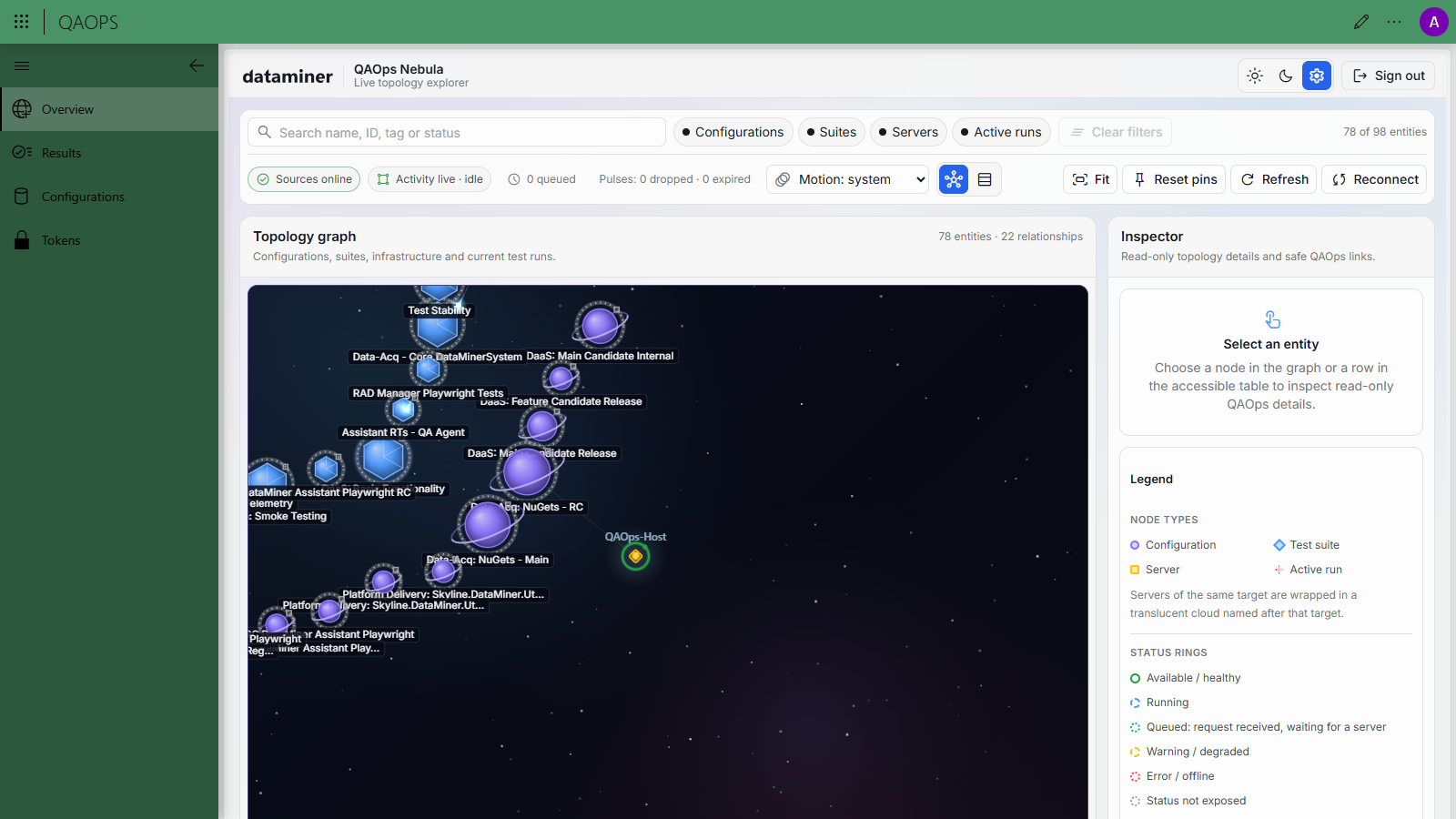
Use the filter buttons at the top (Configurations, Suites, Servers, Active runs) to control which entity types are shown.
Select Demo Test Suite in the graph, and read its details in the Inspector panel on the right.
Select Demo Configuration, and read its description in the Inspector.
Select a server node, and locate its details.
With the toggle button next to the Motion dropdown box, switch to the accessible topology table, and locate the same entities in the table.
Tip
For detailed page and app information, see QAOps main UI.
Step 2: Navigate the QAOps test runs and locate the configuration ID and test suite ID
Still in the QAOps User app, navigate to the Configurations page using the navigation pane on the left.
Select Demo Configuration.
Select Demo Test Suite.
Locate the Configuration ID and Test Suite ID below your selections.
Below this, scroll through earlier test runs and select a run.
Scroll through the test results for the selected run.
Tip
- For details about what a run represents, see QAOps test run.
- For details about the content that is executed during runs, see QAOps test package.
- For more information about configurations, see QAOps configuration.
Step 3: Review a test result in detail
Open any available test run.
Select a test result.
Review the detailed message shown at the bottom of the page.
Tip
For details about result fields and their meaning, see QAOps test result.
Step 4: Check basic run metrics
While a test run is selected, select Show More in the upper-right corner of the app.
Review the basic metrics for that run.
Tip
For additional lifecycle and status information, see QAOps test run.