QAOps main UI
Important
This section contains information that is only applicable to Skyline employees.
You can access the QAOps system at Skyline Communications by using the following links:
Three applications are available, listed in order of increasing security level:
QAOps User (green app)
QAOps Operator (blue app)
QAOps Administrator (red app)
QAOps User app
As a QAOps User, you use the QAOps User application.
This application contains four main pages, which you can select in the navigation pane on the left: Overview, Results, Configuration, and Tokens.
Tip
To get started with a first quick tour of the app, follow the Getting started with the QAOps User app tutorial.
QAOps User - Overview
The Overview page hosts QAOps Nebula, a live topology explorer that visualizes all known configurations, test suites, servers, and active test runs in the QAOps system, along with their relationships.
When you request a new test run, the Overview page is the first place where you can confirm that QAOps has received your request. The run appears as an Active run node connected to its configuration.
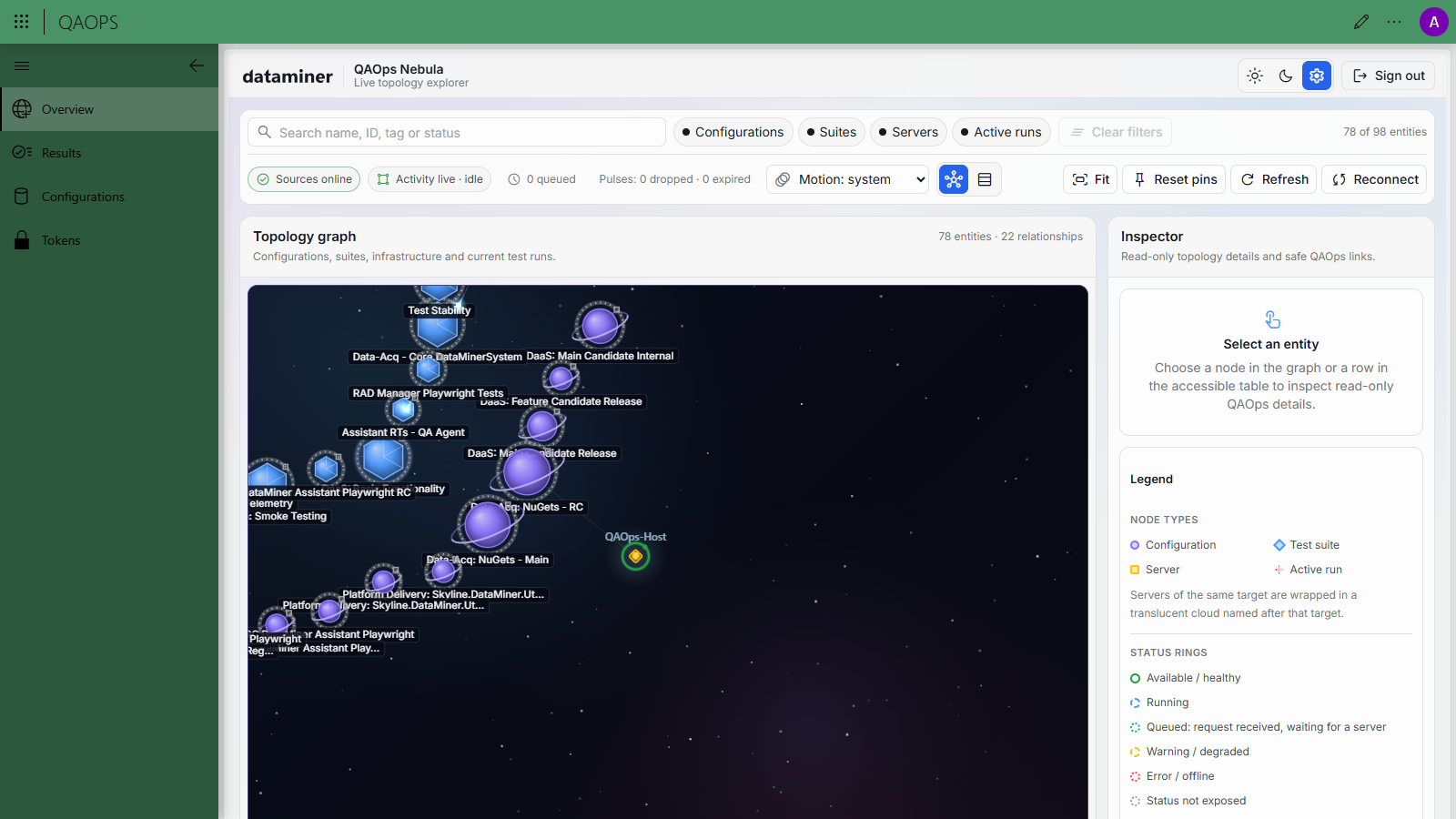
At the top of the page, you can do the following:
Search entities by name, ID, tag, or status.
Filter the graph by entity type with the Configurations, Suites, Servers, and Active runs buttons.
Check the live-activity indicators (Sources online, Activity live, queued runs, and pulses).
Use Fit, Reset pins, Refresh, and Reconnect to control the graph, and the Motion dropdown box to tune animations.
The node types and status rings (available/healthy, running, queued, warning, error) are explained in the Legend panel on the right.
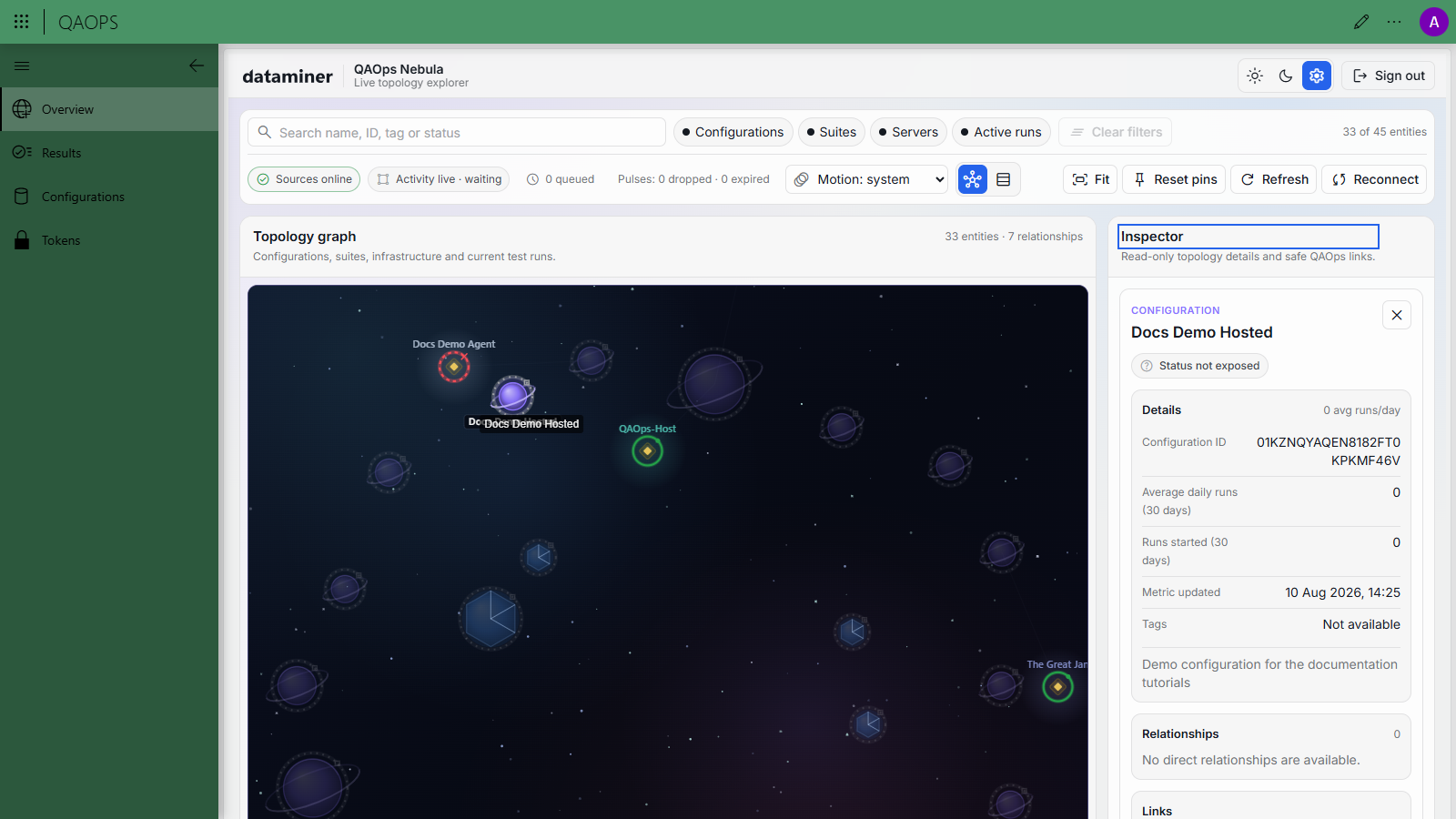
Selecting a node opens the Inspector panel, which shows read-only details such as the entity ID, run metrics (average daily runs, runs started), tags, the description, its relationships, and safe QAOps links.
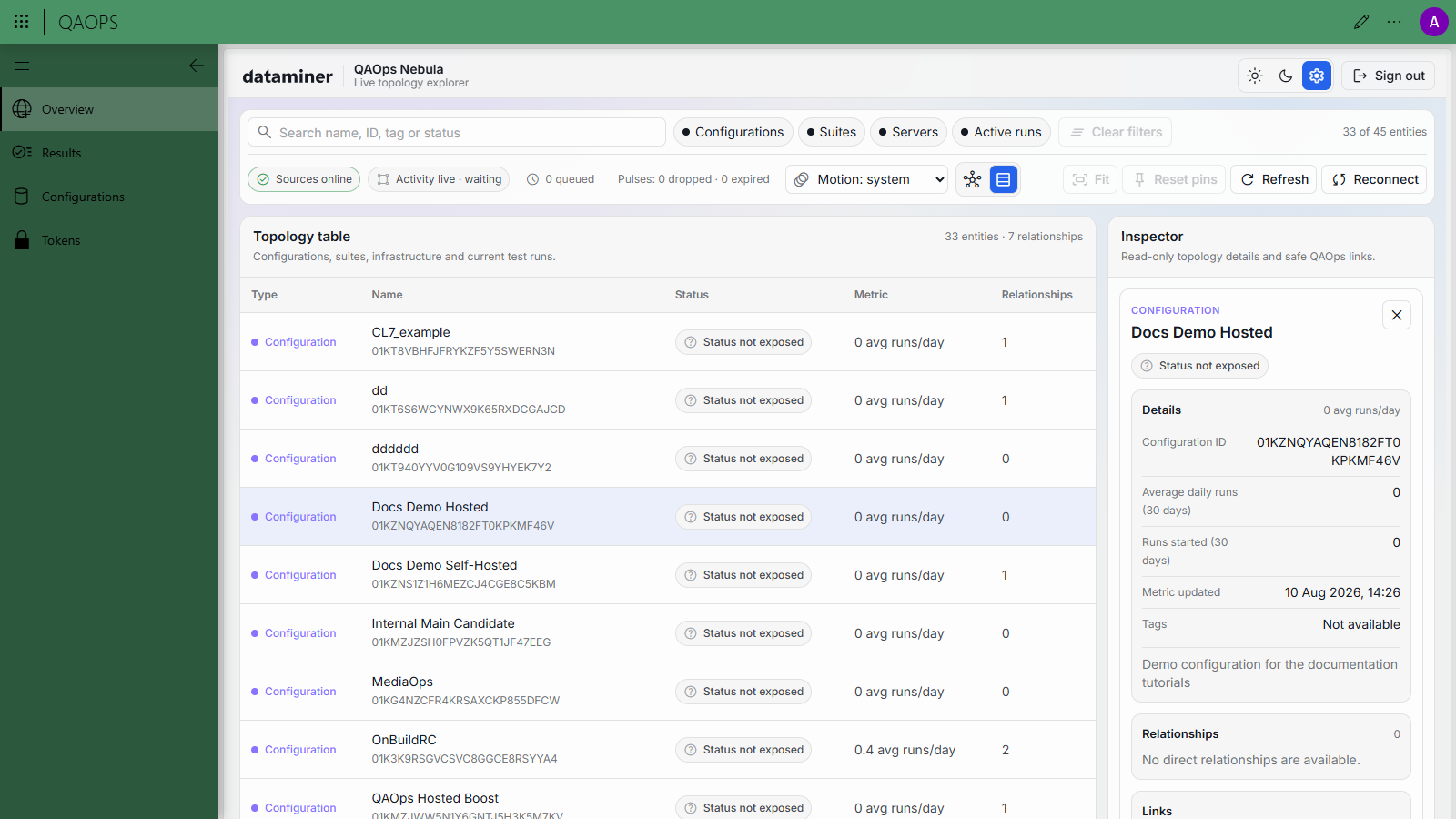
With the toggle button next to the Motion dropdown box, you can switch from the topology graph to an accessible topology table that lists the same entities with their status, metric, and relationship count.
QAOps User - Results
The Results page is a detailed test results explorer covering global categories, configurations, suites, runs, and detailed results.
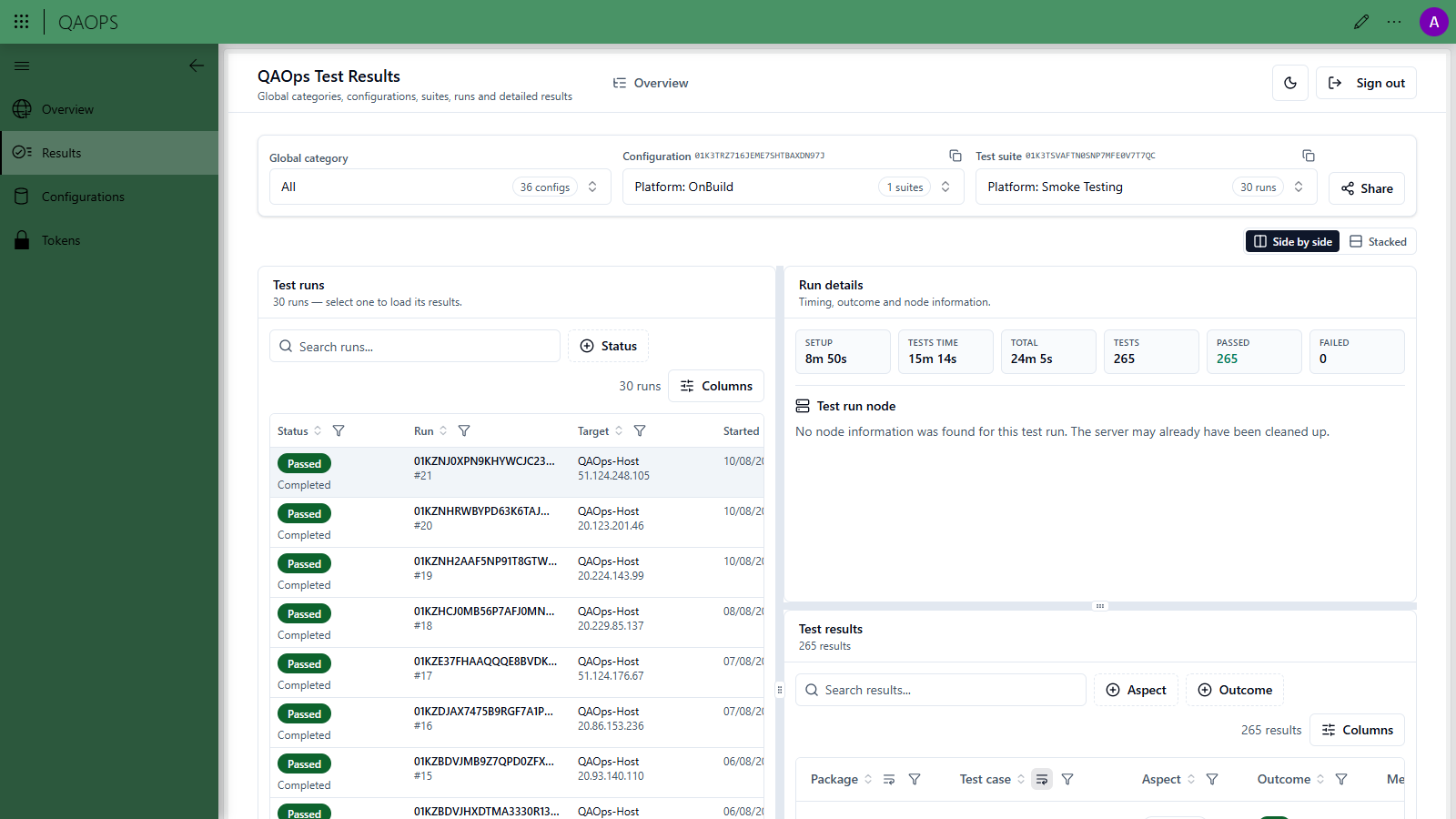
At the top, select a Global category, Configuration, and Test suite. The page then shows the following:
Test runs: All runs of the selected suite, with status, run ID, target, and start time. Use the search box, Status filter, and Columns selector to narrow down the list.
Run details: Timing metrics for the selected run (setup time, tests time, total), the number of tests, and the passed/failed counts, along with test run node information (if the server has not been cleaned up yet).
Test results: The individual test case results of the selected run, filterable by Aspect and Outcome.
With the Side by side/Stacked toggle button, you can arrange these panels as you see fit, and with Share you can copy a link to the current selection.
For help interpreting outcomes and aspects, see Viewing test results and QAOps test result.
QAOps User - Configurations
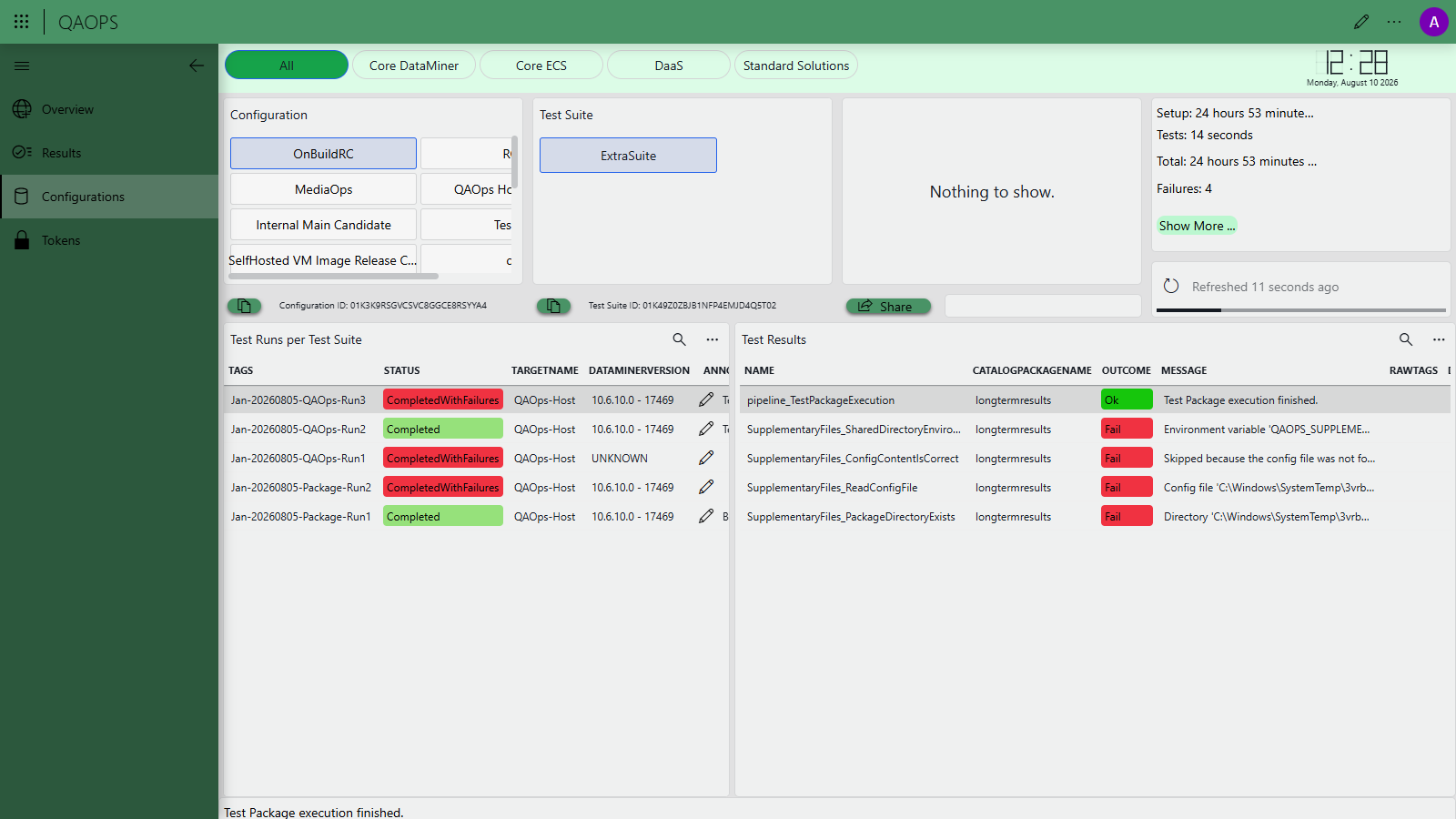
The Configurations page displays test run results, organized by configuration and test suite.
By selecting your configuration and test suite, you can quickly filter and browse test runs to view both detailed test results and summary metrics in the upper-right corner.
You can also see which server was used to run these tests, unless that server has already been undeployed.
Server information allows you to use RDP to investigate failed tests directly on the machine where they were executed.
QAOps User - Tokens
The Tokens page allows you to create tokens that can be used to trigger test runs by using the QAOps DotNet Tool.
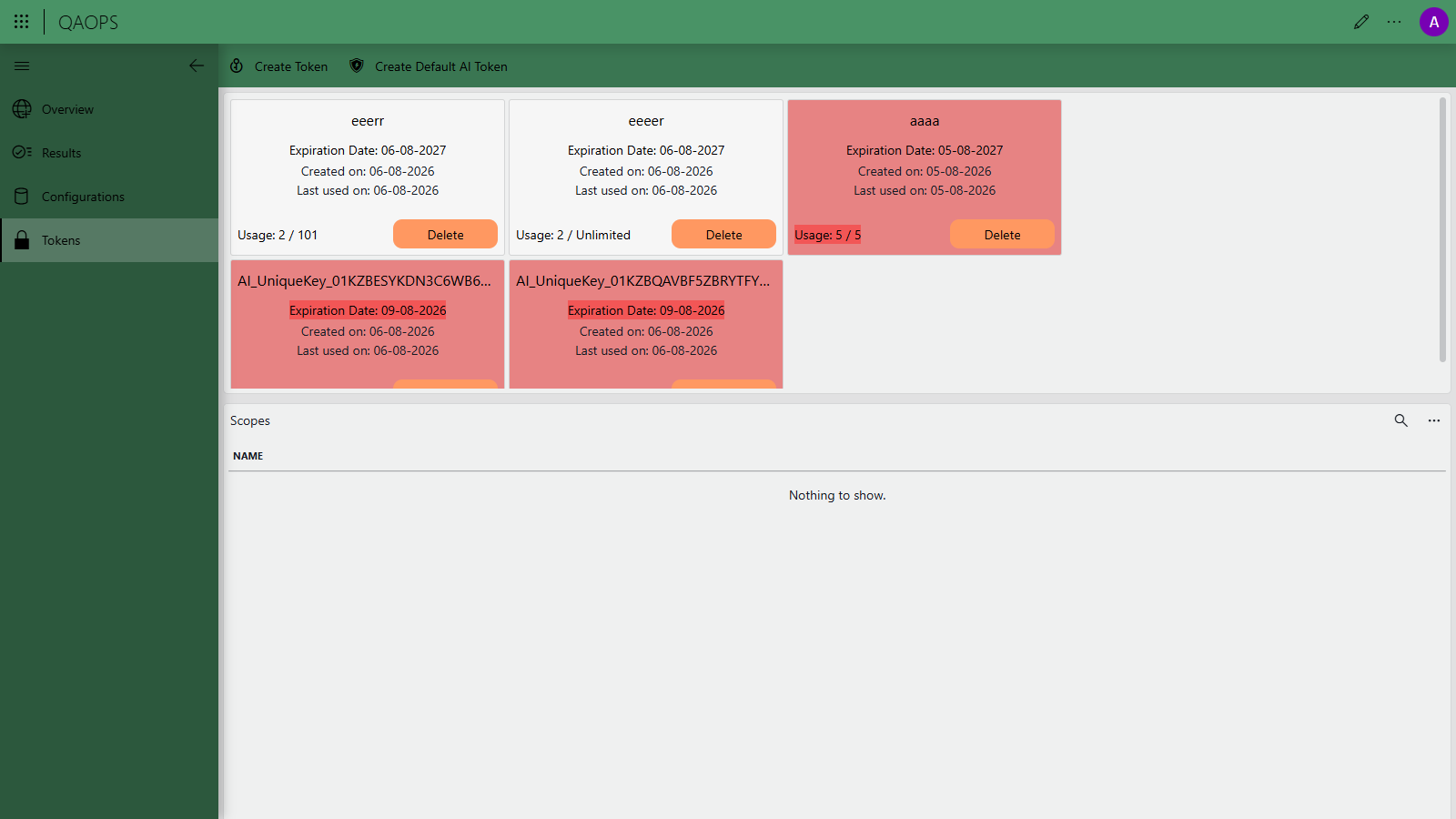
The quickest way to get a token is to click the green Create Default AI Token button at the top of the page. This creates a short-lived token that is preconfigured with the scopes and usage limit needed for agent-driven QAOps test runs, so you do not need to configure anything manually. Wait a few seconds until the token is generated, then click it to copy the value.
To create a custom token instead, do the following:
Select Create Token in the upper-left corner.
Provide a name and expiration date for the token.
Optionally, disable Unlimited Token Usage, and enter a maximum number of token uses.
Select one or more scopes for the token.
These scopes determine which configurations are used for the test runs. At least one must be selected, as otherwise the token cannot trigger test execution.
If needed, use SHIFT+Click to select all scopes and allow full access. However, note that this is not recommended in production environments.
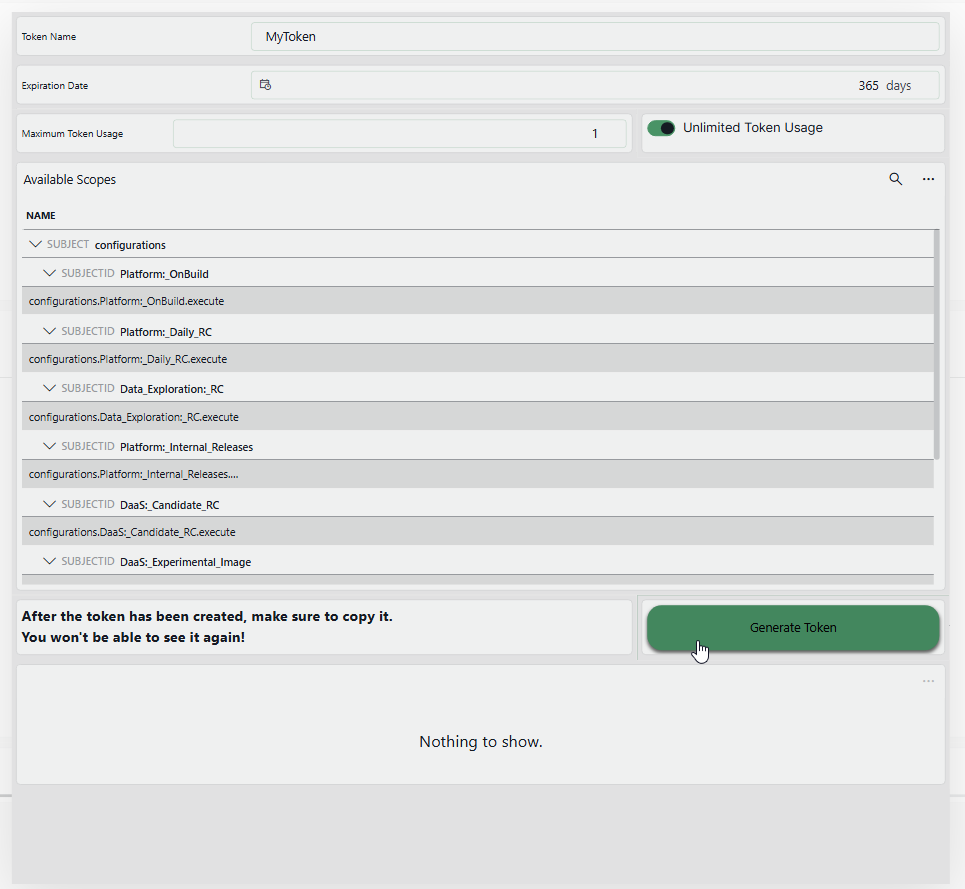
Click Generate Token.
Wait a few seconds while QAOps prepares the token.
When the token is displayed, copy and save the token value immediately, because this will be the only time it is shown.
The cards on the Tokens page show each token's expiration date, creation date, last-used date, and usage count. Tokens that are (almost) expired or that have exhausted their usage are highlighted. By clicking the Delete button you can remove a token you no longer need.
QAOps Operator app
As a QAOps operator, you manage configurations and test suites using the QAOps Operator application. This application is intended to view, create, and edit all configurations, test suites, running tests, and global categories.
However, this app does not allow you to delete these items. This can only be done by a QAOps Administrator using the QAOps Administrator application.
This application contains four main pages, which you can select in the navigation pane on the left: Configurations, Test Suites, Running Tests, and Global Categories.
QAOps Operator - Configurations
The Configurations page shows all known configurations as cards, with the Servers and Allowed Test Suites of the selected configuration shown on the right.
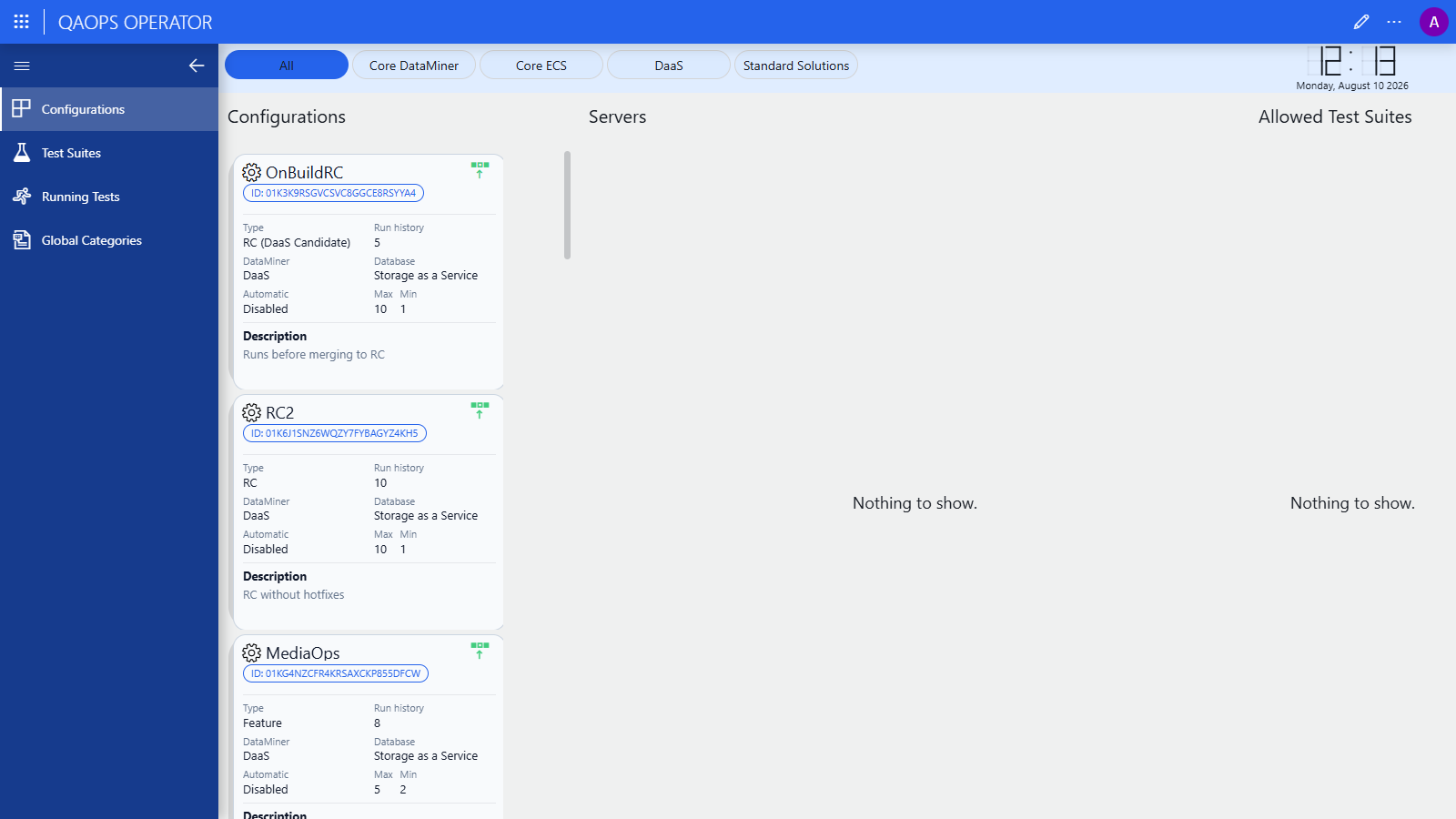
Each configuration card provides the following actions:
Gear icon (next to the configuration name): Opens the Edit Configuration dialog for that configuration. See Editing configurations.
Green upward-arrow button: Manually deploys an extra QAOps-hosted target (DaaS) for the configuration. You can click this button multiple times to start several deployments.
Note
It can take up to 10 seconds before deployments begin and become visible in the low-code app.
Below the last card, the wide ⊕ button opens the Create Configuration dialog to create a new configuration.
Editing configurations
To edit a configuration, click the gear icon on its card. The Edit Configuration dialog will open with the current settings pre-filled. Adjust the settings, and click Save Configuration; the Status box at the bottom of the dialog will confirm the result.
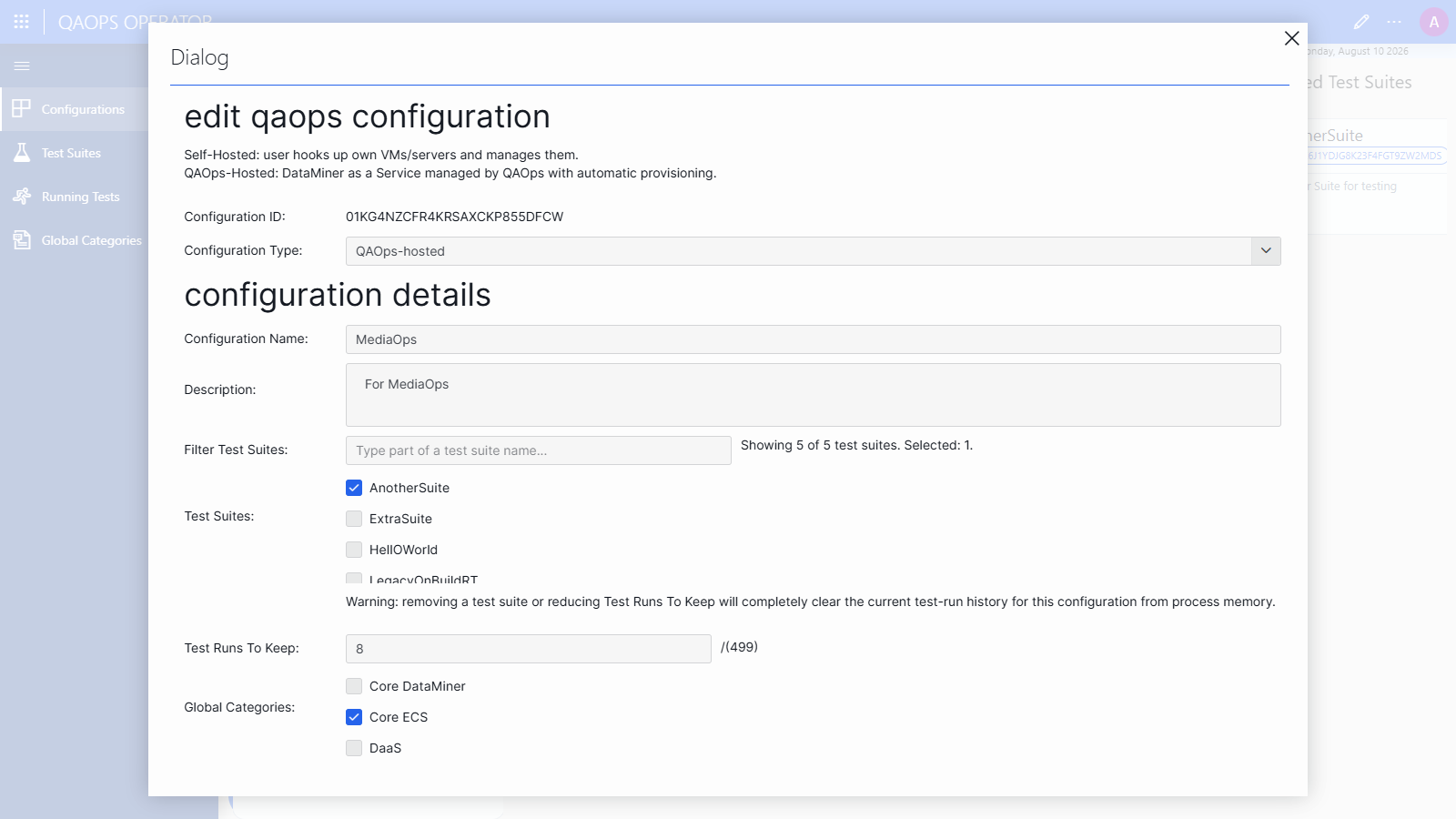
For more information about the available settings, see QAOps configuration. For a step-by-step guide, see Updating a QAOps configuration.
For a self-hosted configuration, saving the dialog also opens the Configure Self-Hosted DataMiners wizard, which you use to register your own servers (single DataMiner Agent or DataMiner cluster) and generate their installer packages. See Adding self-hosted DataMiner servers.
Table Mode
As an alternative to the per-card dialogs, click the Table Mode button in the lower-right corner of the Configurations page. This opens a table view of all configurations with editable columns, along with a Servers table, which is convenient for quick inline edits or comparing many configurations at once.
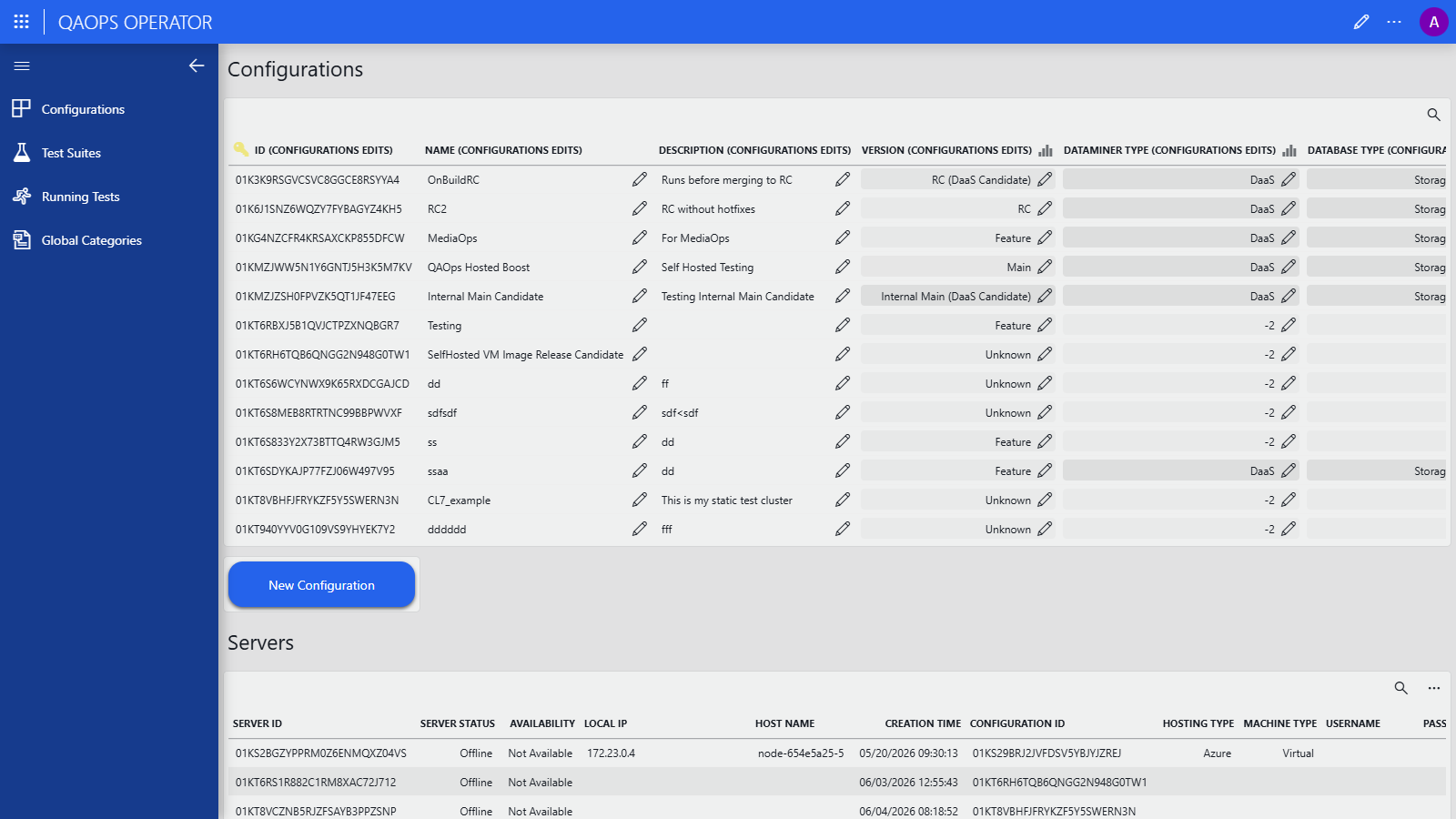
To change a value, click the pencil icon next to it, enter the new value, and confirm by clicking the ✓ button. This pushes your change through the QAOps system. The New Configuration button below the table creates a new configuration.
Note that you can go to different pages without losing your changes. This can, for example, be convenient when you need to find test suite IDs and then return to the table to continue your setup.
QAOps Operator - Test Suites
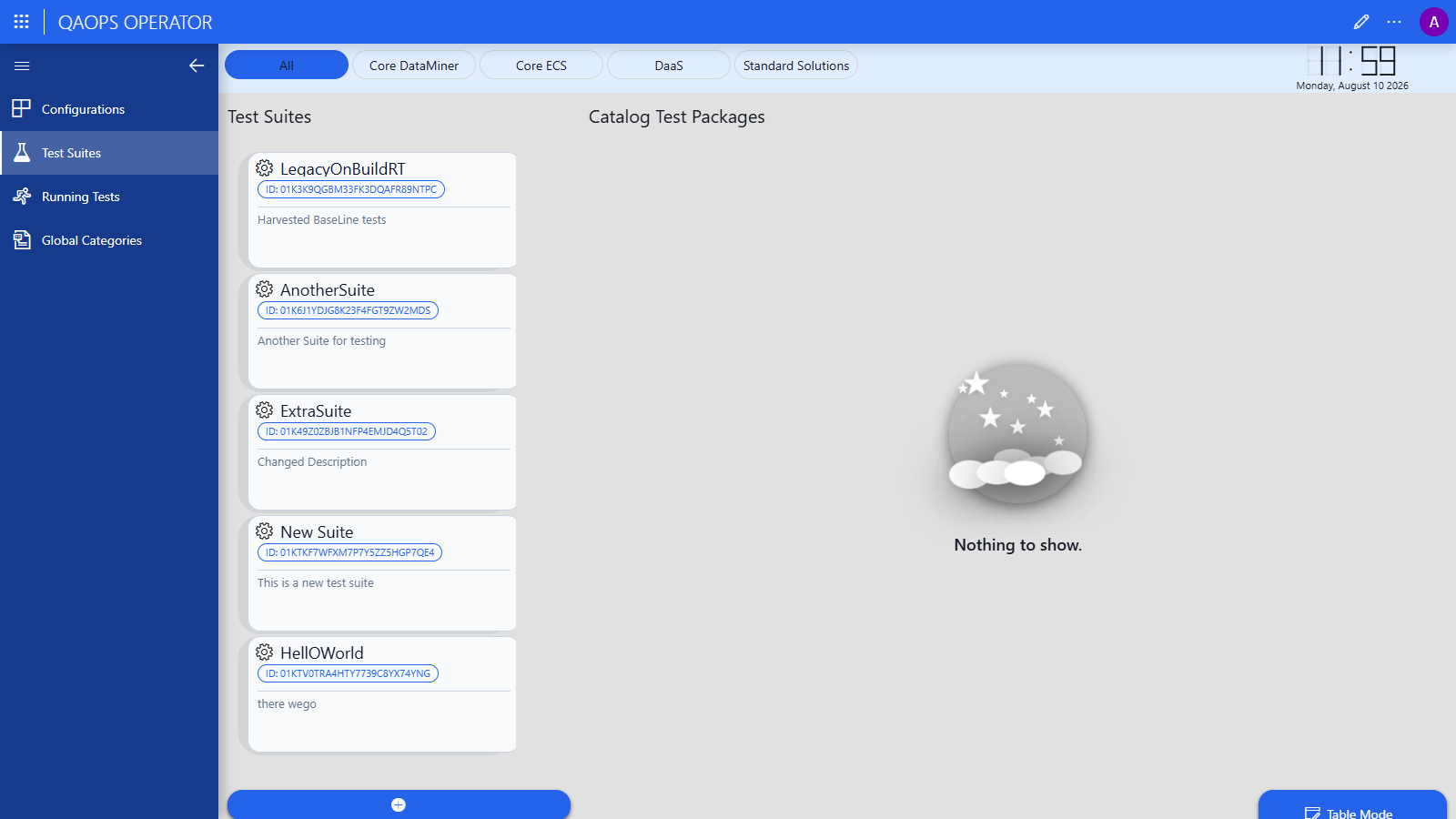
The Test Suites page shows all known test suites. When you select a test suite, you will also get an overview of all test packages in that test suite.
Each test package shows a number in the upper-right corner, which indicates the execution order when the test suite is activated. By clicking the Open button for a test package, you can go directly to the Catalog page for that package.
Each package also shows its QAOps package identifier, which is different from its Catalog identifier. For example:
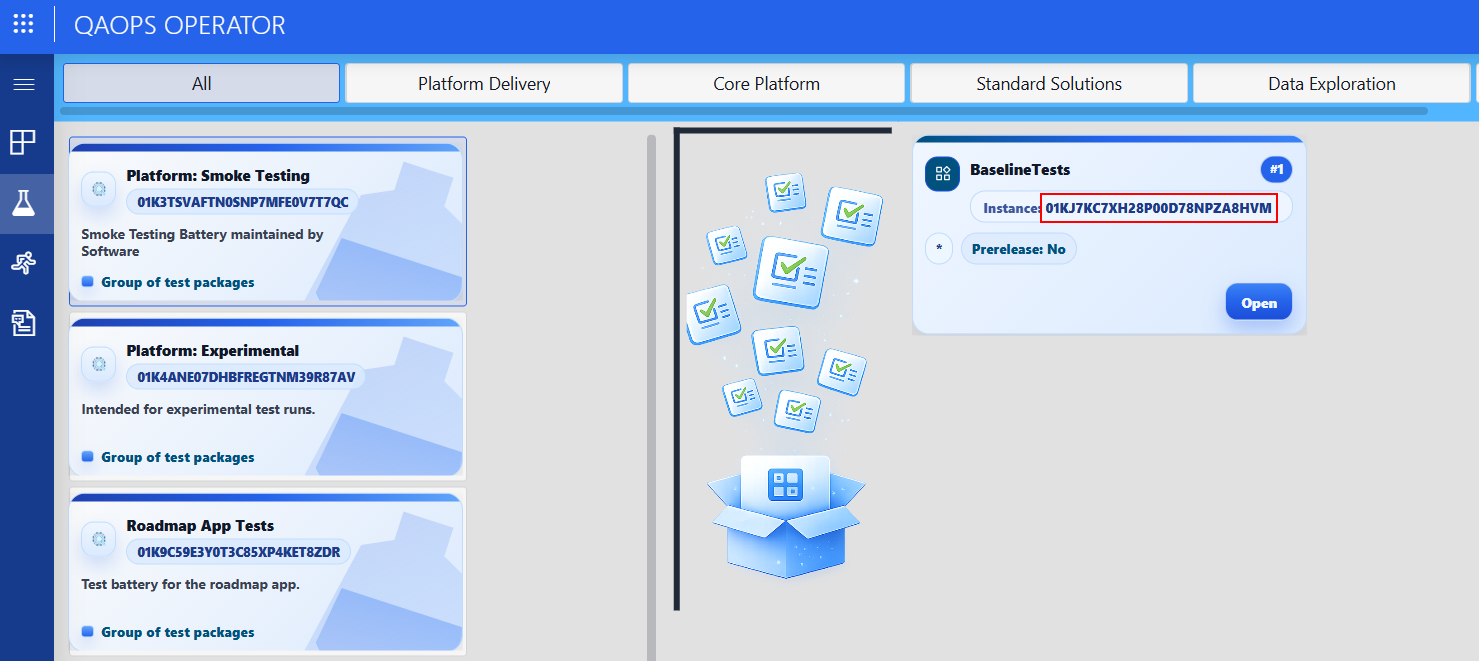
The QAOps package identifier is used when triggering a test run with an unreleased test package.
Editing test suites
To create a test suite, click the ⊕ button below the last test suite card. To edit an existing test suite, click the gear icon on its card. Both open the same dialog, in which you can set the name, description, and global categories, and manage the test packages of the suite.
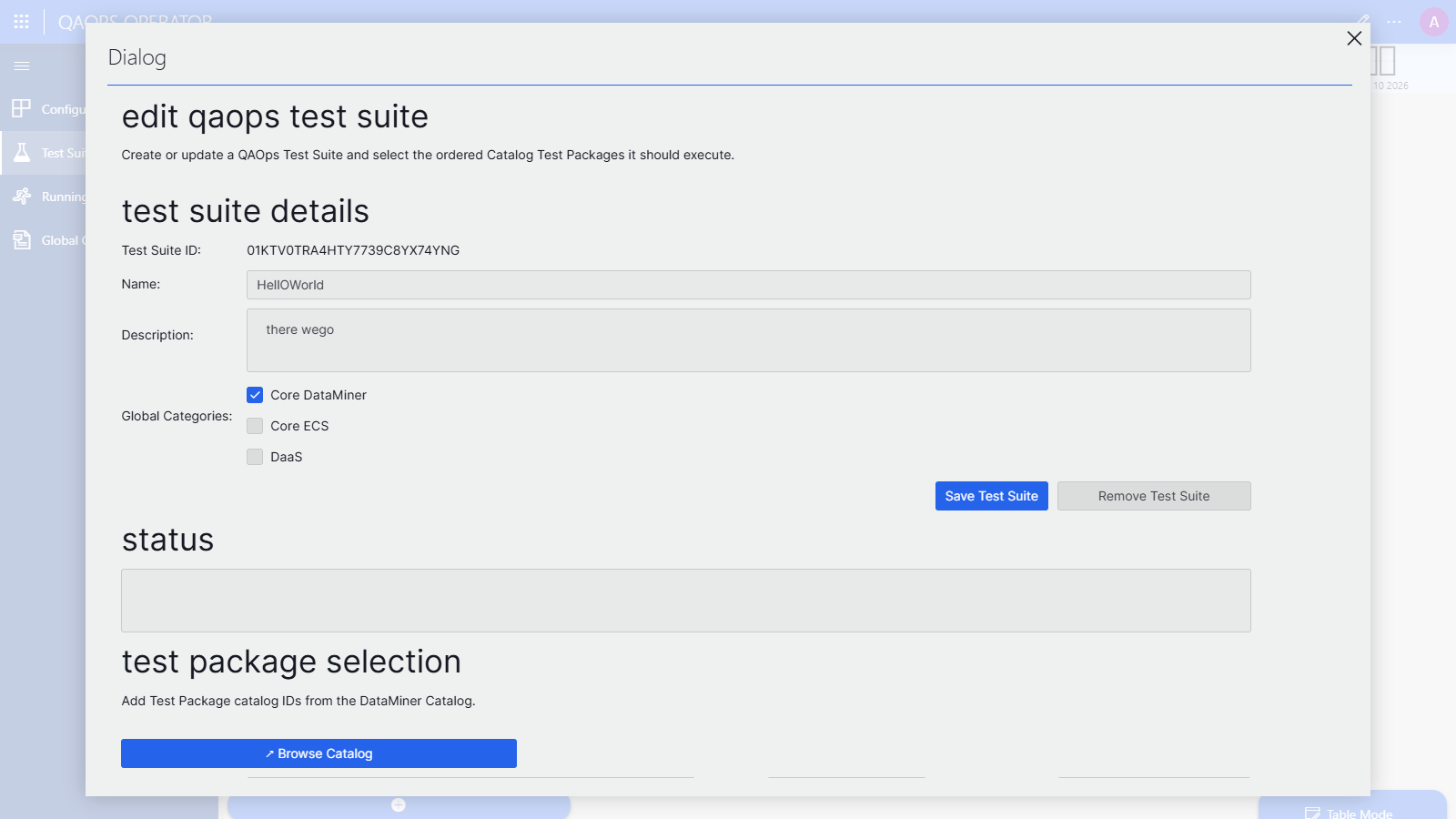
For a step-by-step guide, see Creating and managing test suites. For more information about the available settings, see QAOps test suites.
Adding test packages
In the Test Package Selection section of the dialog (available once the test suite exists), you can add test packages from the DataMiner Catalog:
Optionally click Browse Catalog to open the Catalog filtered on test packages and look up the Catalog ID (a GUID) of your package.
Enter the Catalog ID in the Catalog ID box.
Optionally adjust the Version filter (default:
*) and the Allow Prerelease setting.Click Add Package.
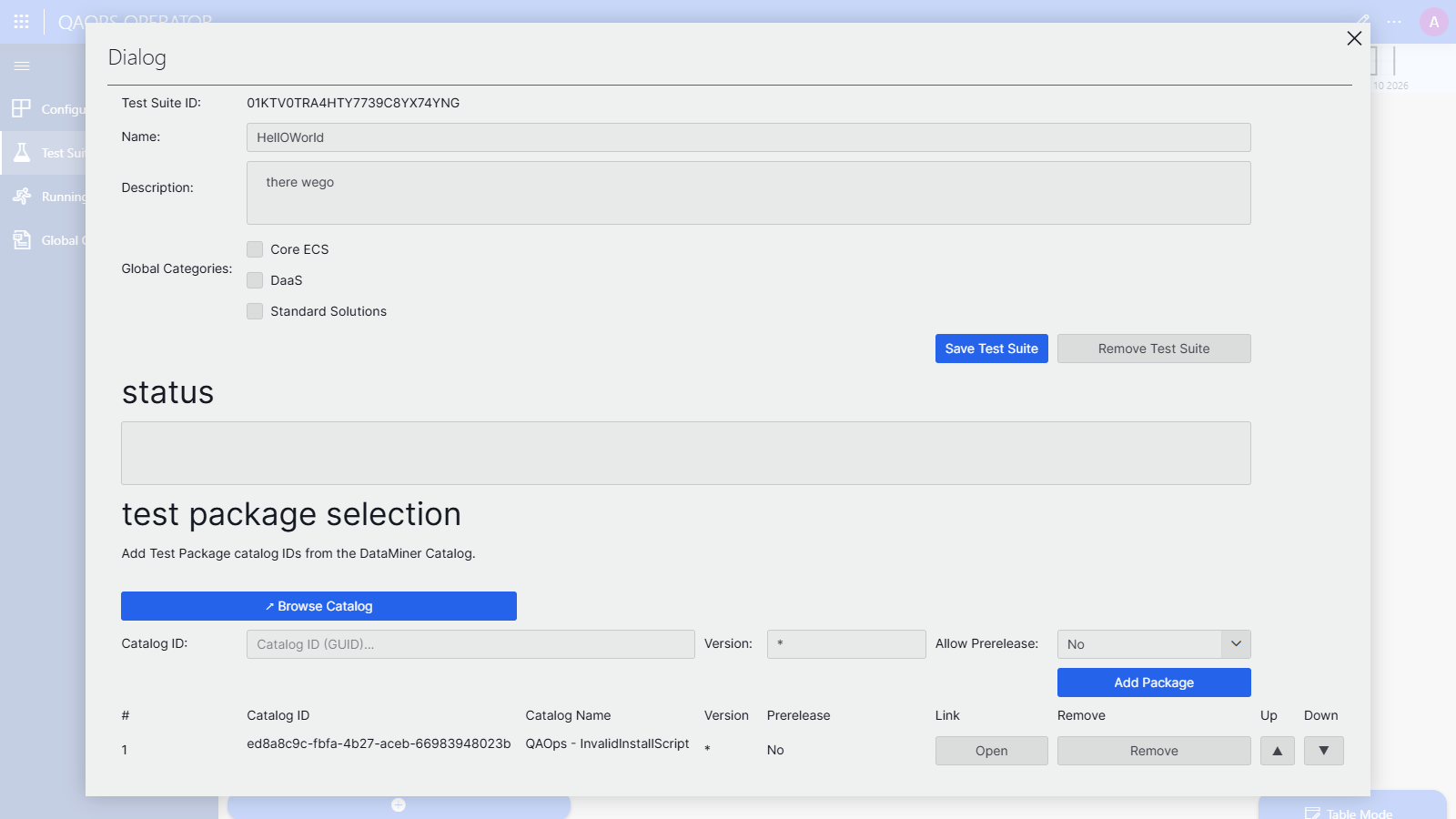
In the package table, use the ▲/▼ buttons to change the execution order, Open to go to the package's Catalog page, and Remove to remove the package from the suite.
Version filters for test packages
The Version value of a test package uses the same sorting rules as the package versioning for NuGet packages. However, QAOps does not use version ranges and instead accepts an * wildcard to filter on Catalog versions.
| Version | Result |
|---|---|
* |
Latest stable version |
1.2.* |
Latest 1.2.x version |
1.* |
Latest version starting with 1. |
*.1 |
Latest version ending in .1 |
1.0.0-* |
Latest prerelease of 1.0.0 |
*-rc1 |
Latest version with rc1 suffix |
1.1.1* |
Latest version starting with 1.1.1 |
The Allow Prerelease column can be used to include prerelease versions without specifying them in the Version column.
Note
- The
*wildcard can appear in any position and spans across version segments. - Matching is performed using NuGet version precedence rules, not string comparison.
- The highest matching version is always selected.
- Prerelease versions are:
- Excluded by default.
- Included when
Allow Prereleaseis enabled. - Always considered when explicitly matched (e.g.,
*-rc1,1.0.0-*).
QAOps Operator - Running Tests
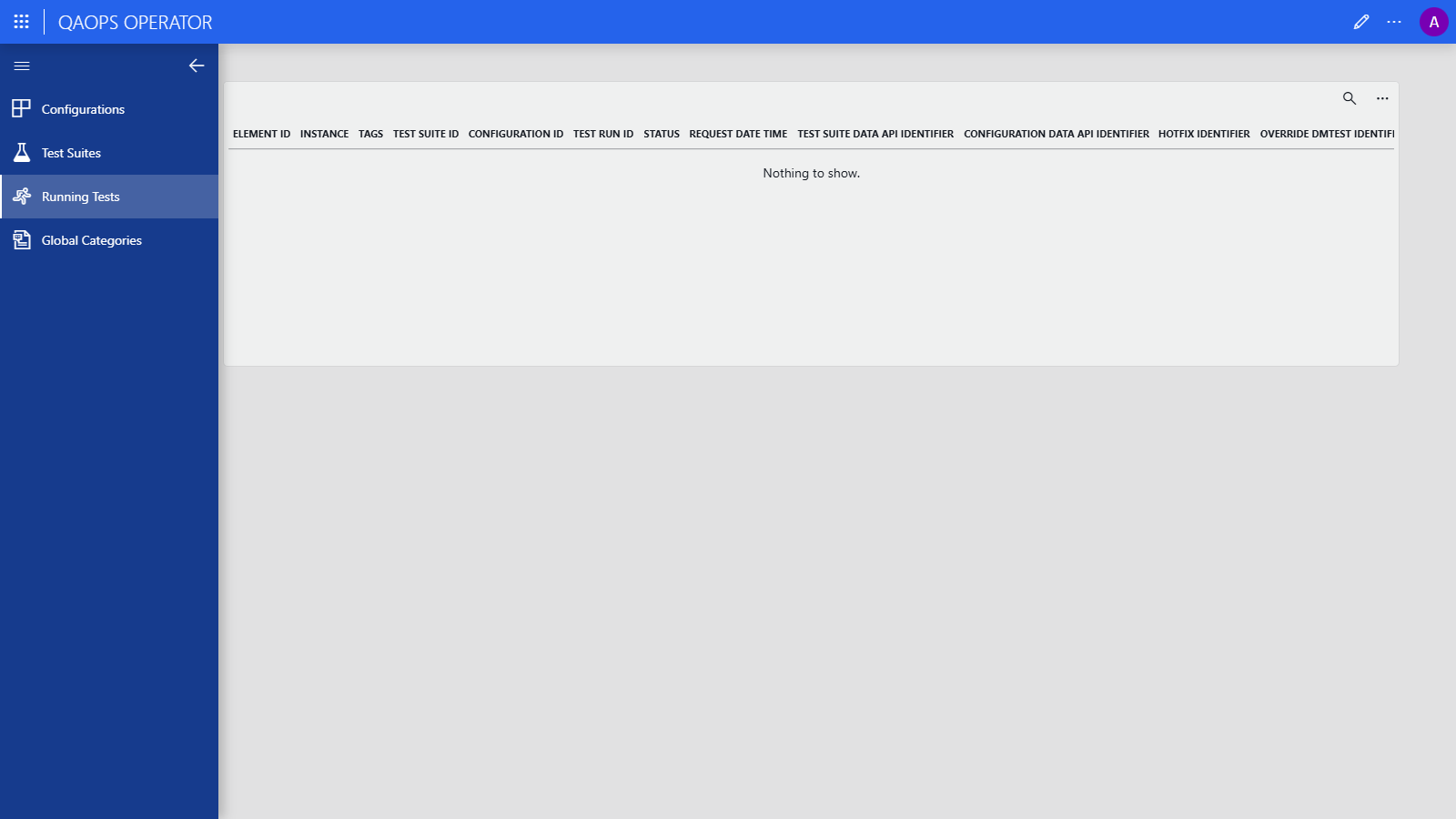
The Running Tests page shows a table with all known test requests.
This page is intended as an alternative to the Overview page in the QAOps User application.
QAOps Operator - Global Categories
The Global Categories page allows you to add or adjust known global categories.
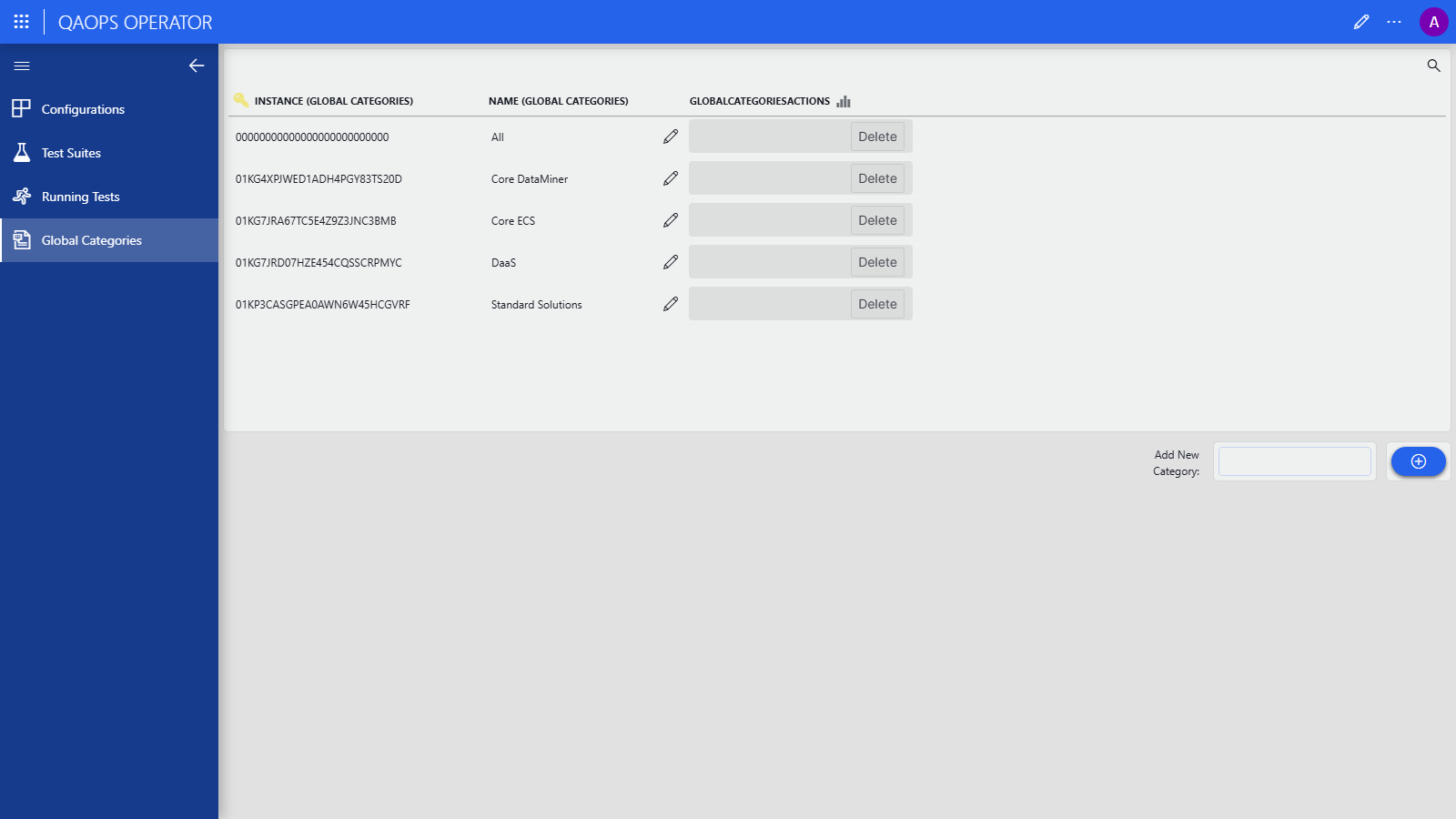
These categories are shown as buttons in the header bar of the QAOps User and QAOps Operator applications and can reduce UI clutter by filtering specific configurations and test suites.
To add a category, enter its name in the Add New Category box in the lower-right corner, and click the ⊕ button. To rename a category, use the pencil icon next to its name.
This is currently the only section in the QAOps Operator application that allows deletion.
Important
Do not adjust or delete All with ULID 00000000000000000000000000.