DataMiner Assistant app
Important
The DataMiner Assistant app is an upcoming feature that is not yet available in current DataMiner versions. The information below provides a preview of what will be available in a future release and may be subject to change.
The Assistant app is an AI assistant integrated within DataMiner. It has access to various sources of information within the DataMiner System and leverages Large Language Models (LLMs) to integrate this information and extract useful insights.
Accessing the Assistant app
When this preview feature has been enabled, you can access the Assistant app via the DataMiner landing page.
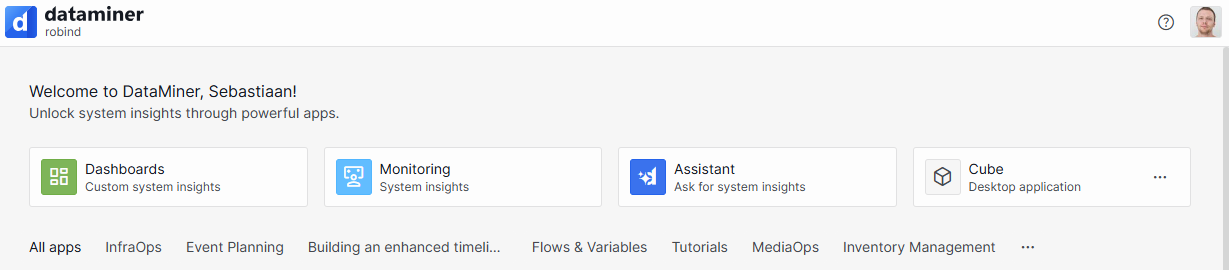
Alternatively, the app is also available from Microsoft Teams or Microsoft Copilot. See DataMiner Assistant for Microsoft 365.
Note
To enable the Assistant app in preview in your DataMiner System, contact ai@skyline.be.
Assistant app user interface
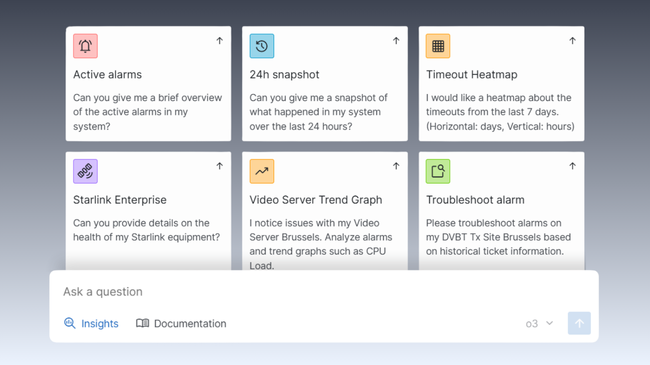
When you open the app, a welcome screen is displayed with the following elements:
Left sidebar: Allows you to start a new session at any time by clicking + New session. Below that, you can access your sessions, agents, skills, and tools.
Header bar: The header bar is similar to other native DataMiner apps, with a button to return to the landing page on the left, and a user icon on the right. Clicking the user icon opens a menu with the following options:
- About: Provides access to information about the app, including the version of the app and all of its components.
- Settings: Allows you to select whether the time zone configured in the client operating system is used or a custom time zone.
- Sign out: Logs you out of the app and returns you to the logon screen.
Suggestion cards: A set of predefined prompts to help you get started quickly. These are only available for native AI agents and are unique to the selected agent, providing relevant starting points tailored to that agent's capabilities.
Chat input box: Located at the bottom of the screen, this is where you type your questions. While the Assistant is working, the chat displays the tools being invoked and the reasoning steps the model performs, giving you insight into how the response is being constructed.
When you start a chat, the app automatically shares your browser's detected time zone and language with the Assistant. This lets agents determine your preferred formatting for dates, times, and numbers without any manual configuration. See Agent context.
Within the chat input box, the following features are available:
Agent selector: In the lower-left corner of the chat input, you can select which AI agent handles your conversation (e.g., DataMiner Insights Agent). The Assistant supports both native agents and specialized agents, allowing you to switch between general-purpose and purpose-built agents depending on your use case. The last selected agent is remembered and restored when you reopen the chat.
Reasoning level selector: A speed option (e.g., Fast) that lets you choose between faster responses and deeper reasoning. The selected reasoning level is preserved across sessions for models that support reasoning.
Model selector: In the lower-right corner, you can choose which model answers your question (e.g., GPT-5.6 Luna). The last selected model is remembered across sessions.
Speech-to-text: A microphone button next to the chat input that allows you to use speech-to-text for entering your questions.