Adding self-hosted DataMiner servers
Important
This section includes information that is only applicable to Skyline employees.
In this tutorial, you will learn how to create a self-hosted QAOps configuration and connect either a single DataMiner Agent or a DataMiner cluster to it, using the Configure Self-Hosted DataMiners wizard.
Use a self-hosted configuration when your tests must run on hardware or a DataMiner setup that QAOps cannot provision as DaaS, for example a lab machine with specific interfaces, a long-lived staging system, or a cluster.
Expected duration: 20 minutes.
Prerequisites
Operator access to the QAOps Operator app (the blue app).
At least one existing test suite.
Access to the DataMiner server(s) you want to connect, so you can install the generated installer package on them.
Overview
Step 1: Create a self-hosted configuration
In the QAOps Operator app, go to the Configurations page.
Scroll to the bottom of the configuration card list, and click the ⊕ button.
Keep the Configuration Type dropdown box set to Self-hosted, the default value.
Enter a Name and a Description, select the allowed Test Suites, set Test Runs To Keep, and optionally select Global Categories, in the same way as for a QAOps-hosted configuration (see Creating a QAOps configuration).
Note that a self-hosted configuration has no provisioning section. QAOps does not deploy servers for it.
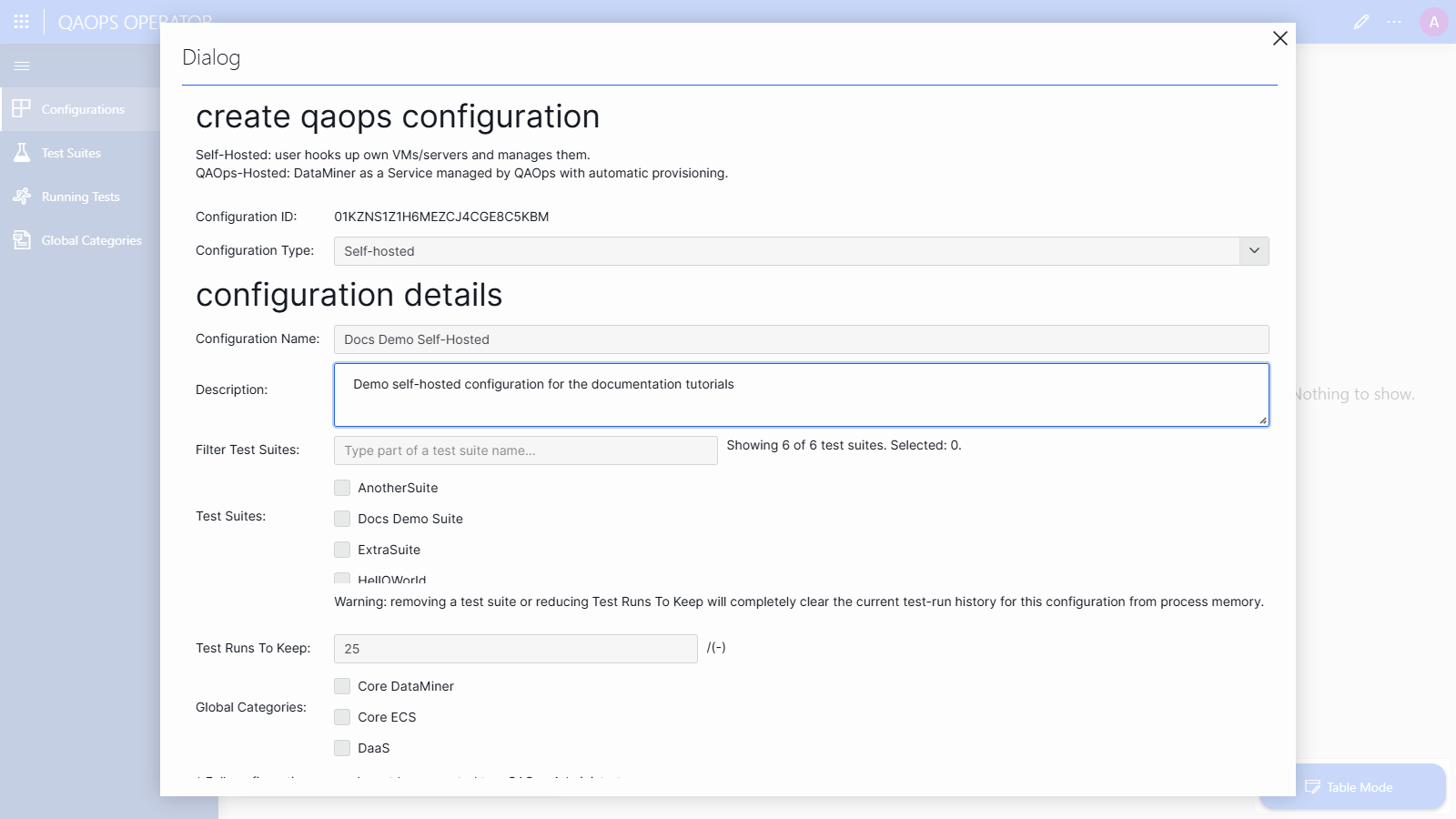
Click Save Configuration, and check the Status box for confirmation.
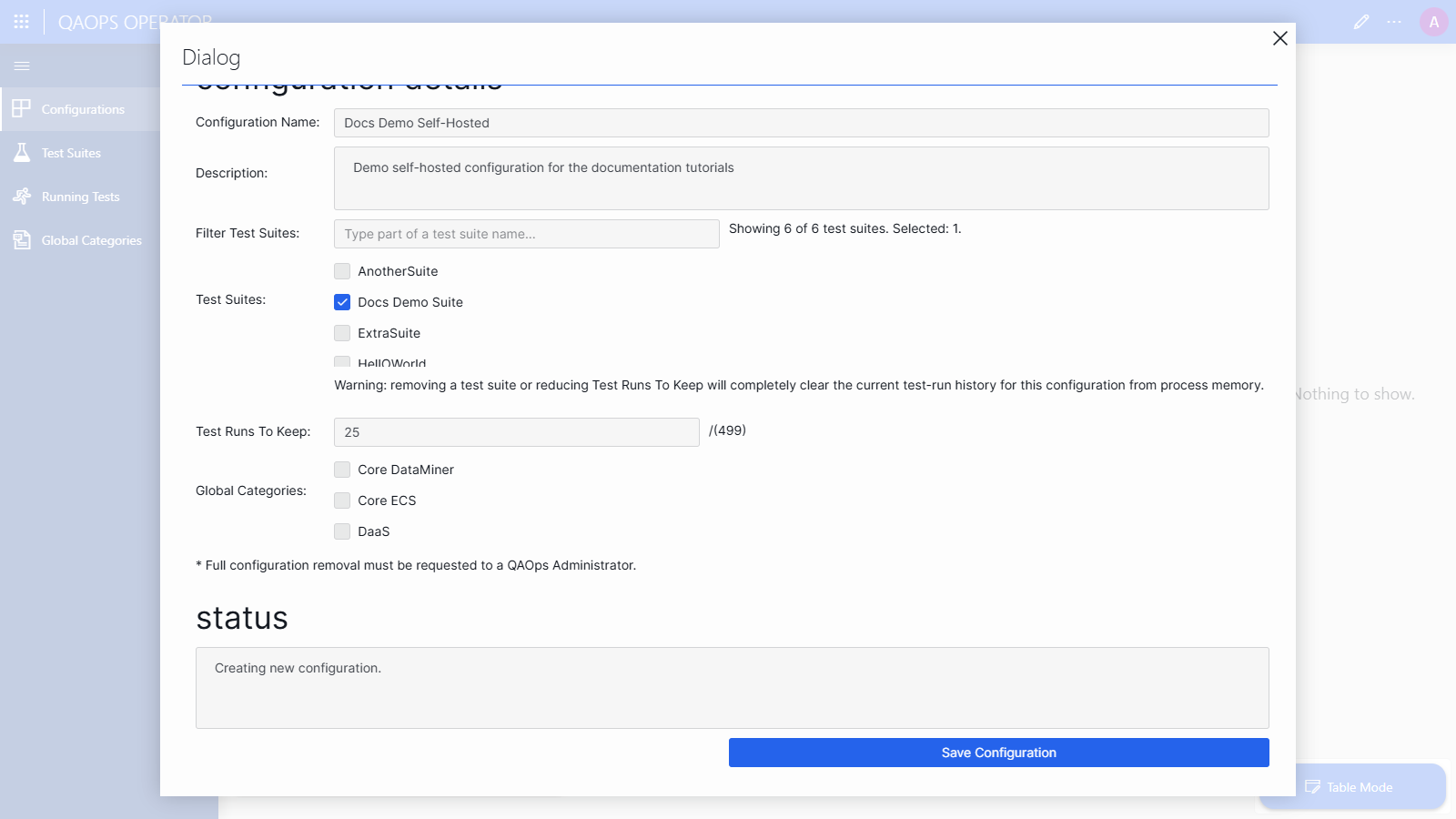
After the configuration is saved, the Configure Self-Hosted DataMiners wizard will open automatically.
Step 2: Get to know the Configure Self-Hosted DataMiners wizard
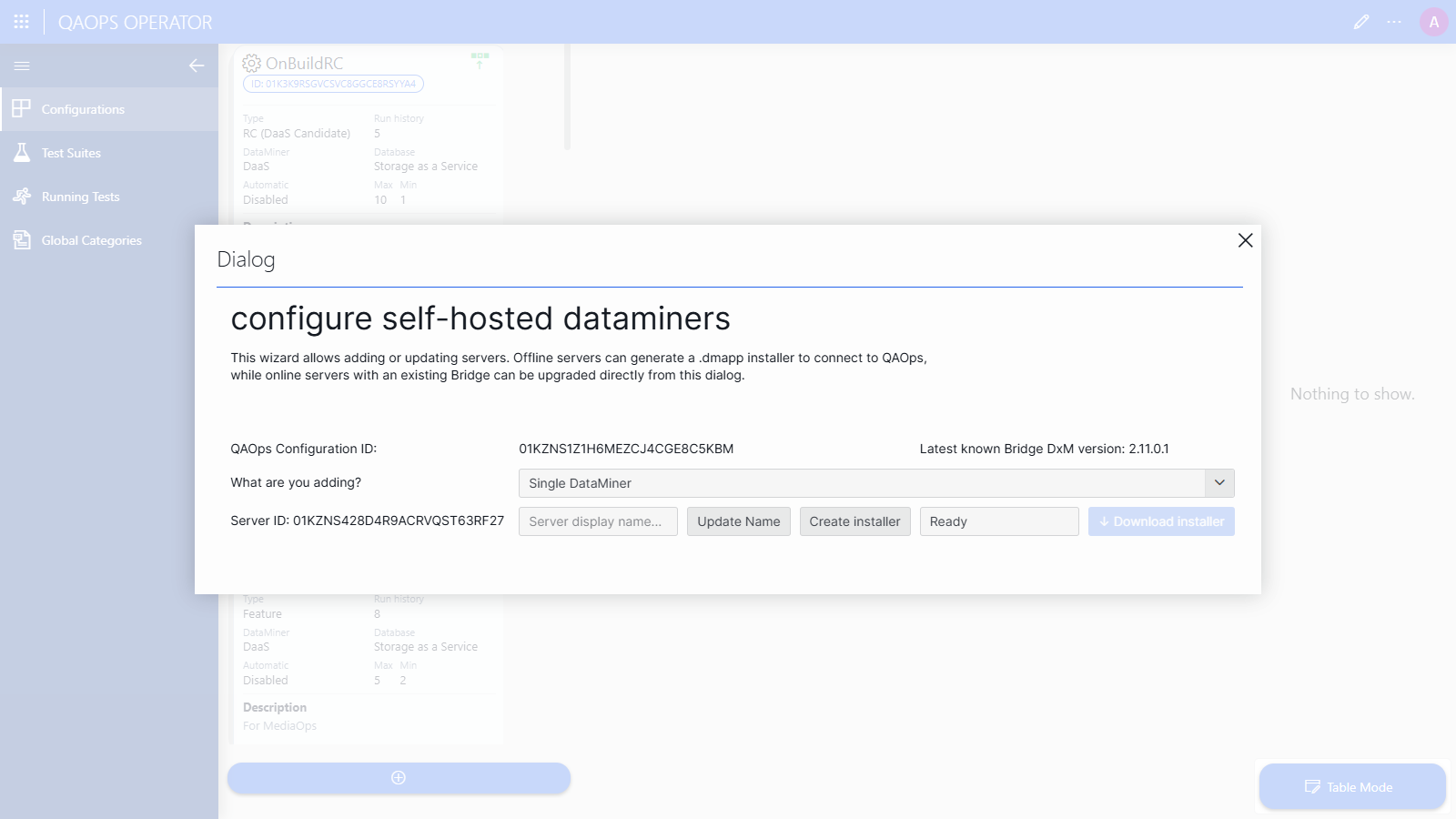
The wizard allows you to add or update servers:
Offline servers (not yet connected to QAOps) can generate a
.dmappinstaller package that connects them to QAOps.Online servers that already run the QAOps Bridge DxM can be upgraded directly from the wizard.
At the top, the wizard shows the QAOps Configuration ID it belongs to, as well as the Latest known Bridge DxM version.
Using the What are you adding? dropdown box, you can choose the topology:
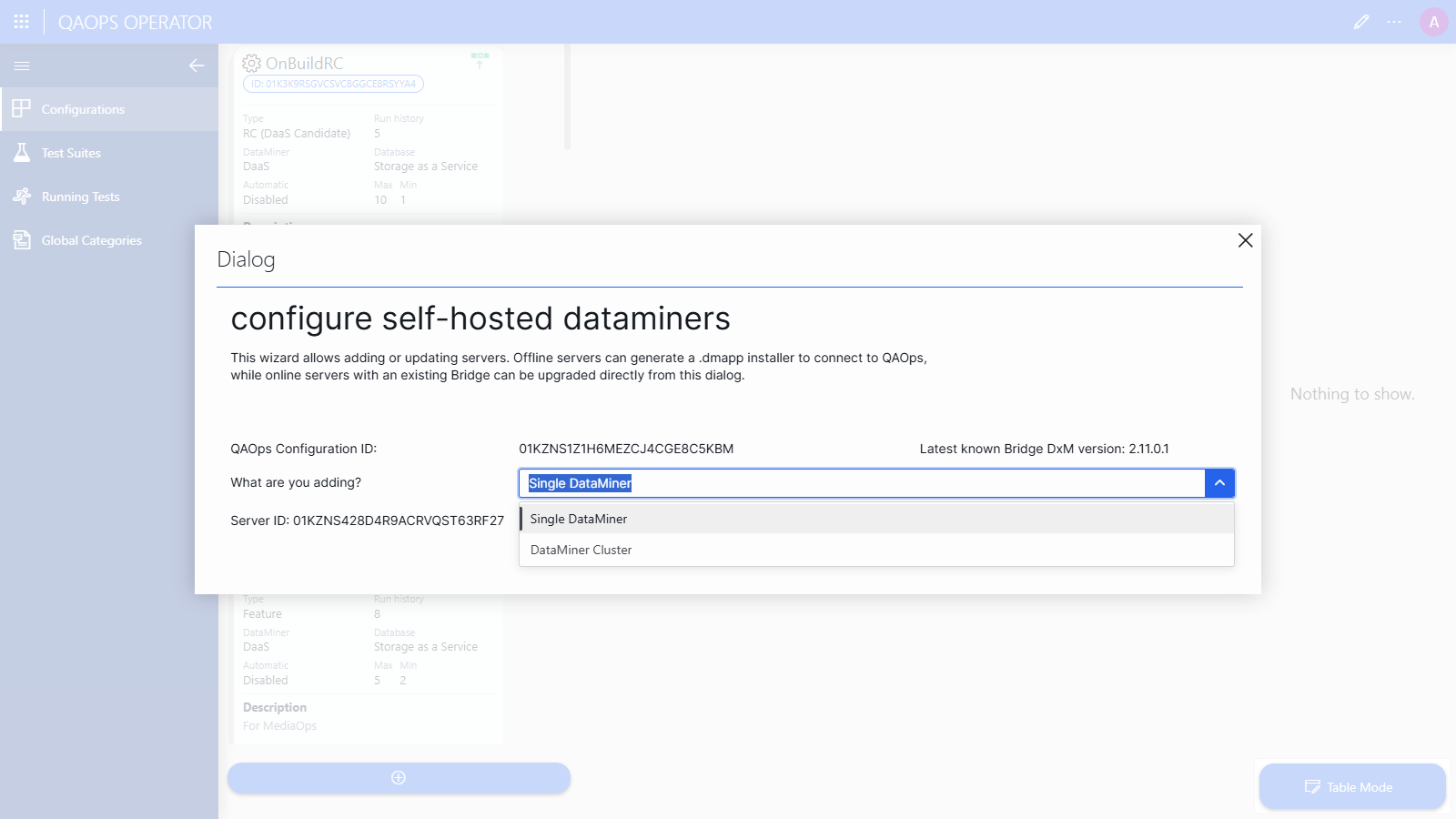
Single DataMiner: One standalone DataMiner Agent.
DataMiner Cluster: Multiple DataMiner Agents that form one DataMiner System.
Tip
You can reopen this wizard at any time for an existing self-hosted configuration by clicking the gear icon on the configuration card and saving, or via the server management button on the card.
Step 3: Add a single DataMiner Agent
Open the What are you adding? dropdown box, and select Single DataMiner.
The wizard will show a server row with an automatically generated Server ID.
In the Server display name box, enter a display name for the server, and click Update Name.
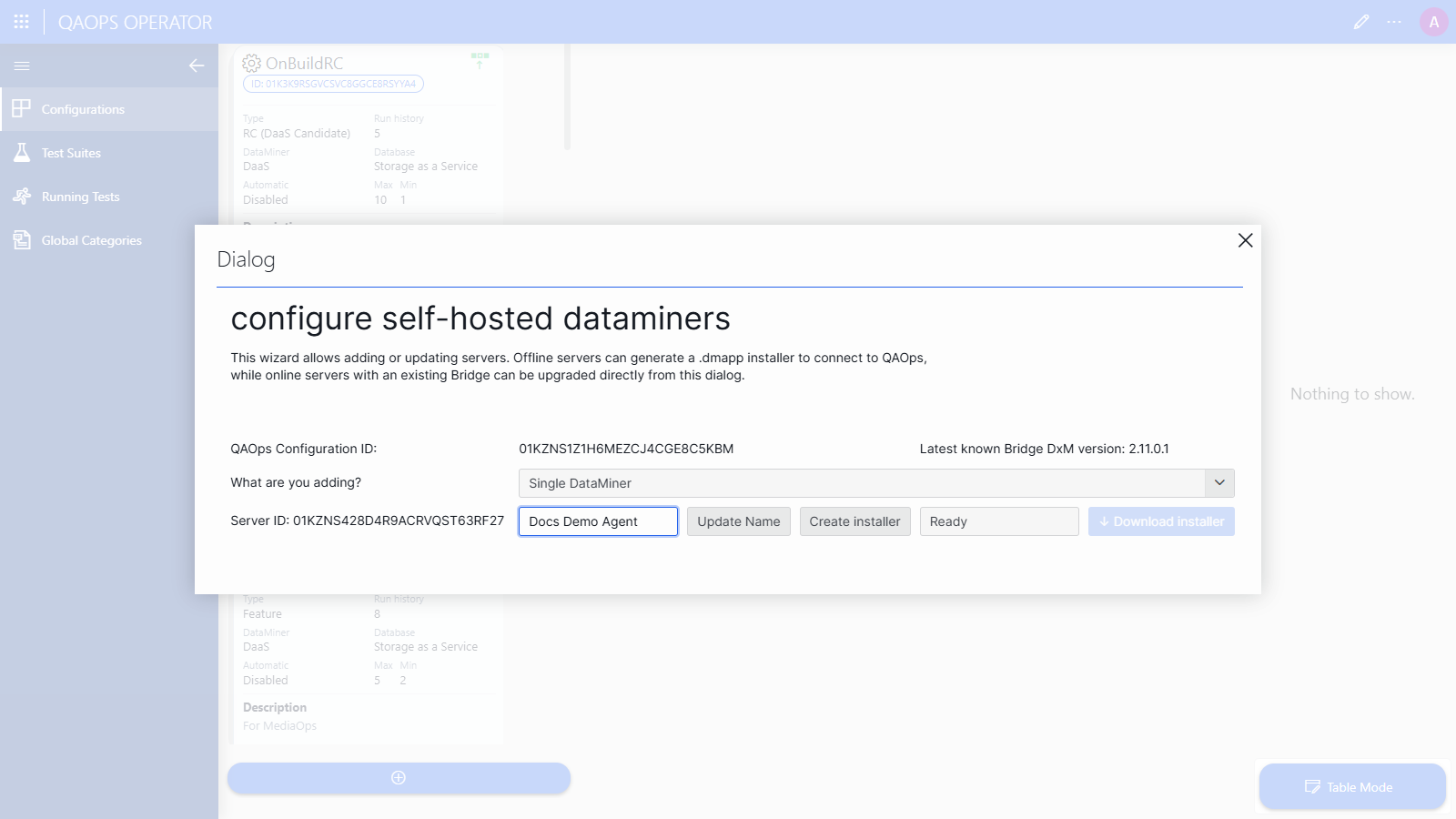
Click Create installer.
The status box will show Packaging with a running timer while QAOps builds a
.dmappinstaller specific to this server.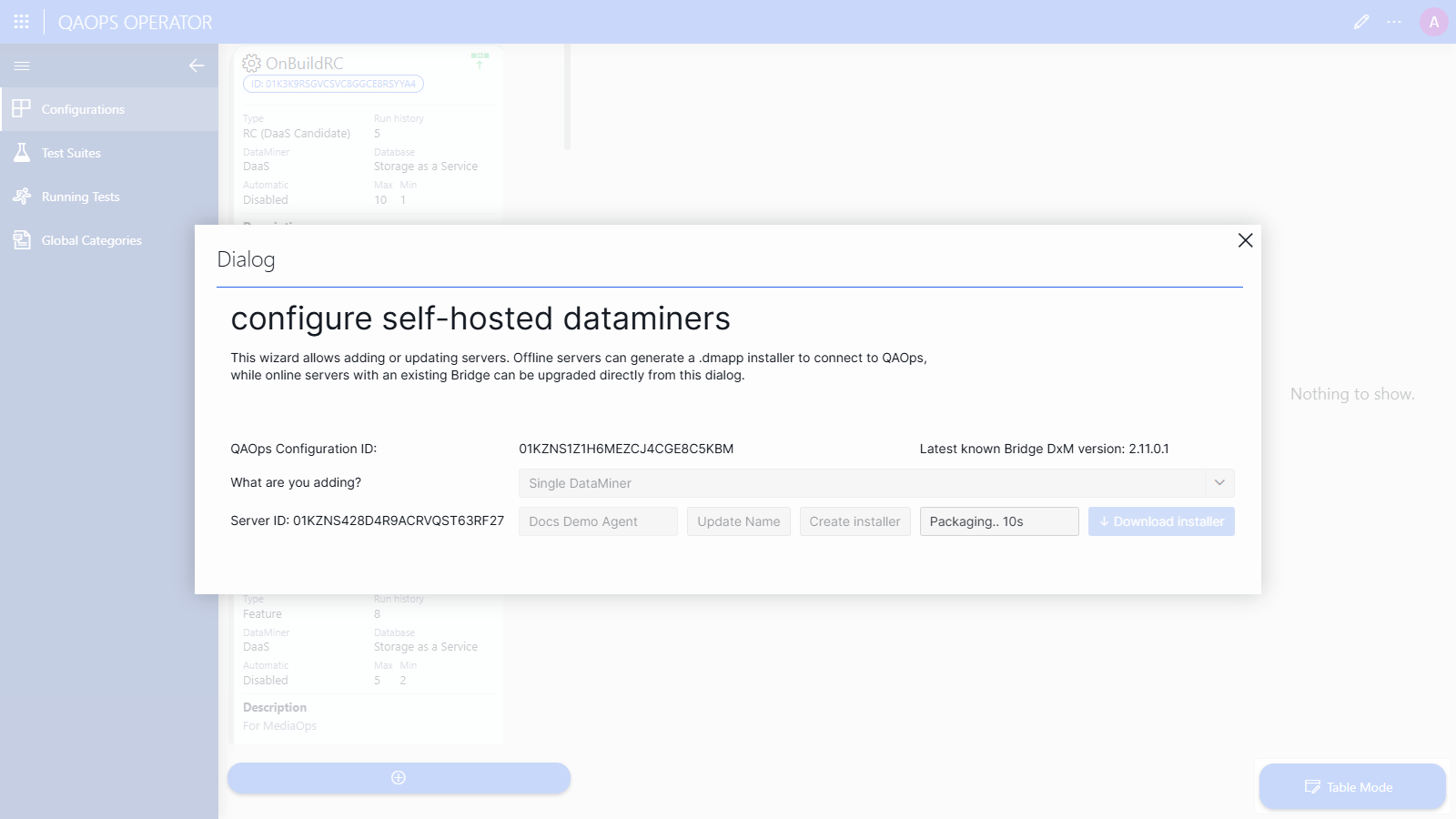
Wait until the status shows Finished.
The Download installer button will then become active.
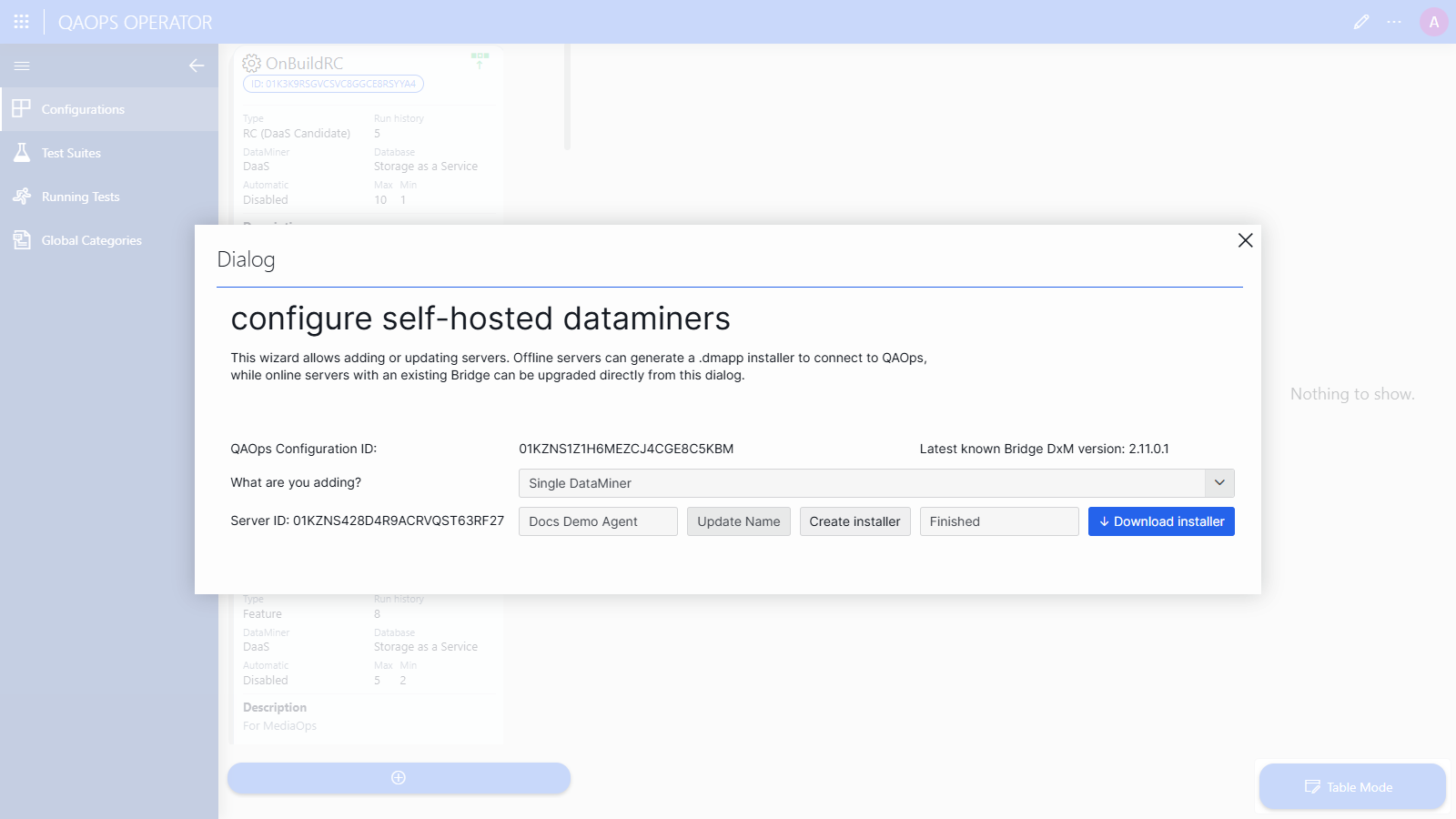
Click Download installer to download the
.dmapppackage.
Step 4: Add a DataMiner cluster
Open the What are you adding? dropdown box, and select DataMiner Cluster.
The wizard will now show a DataMiner Cluster display name row and one row per server in the cluster.
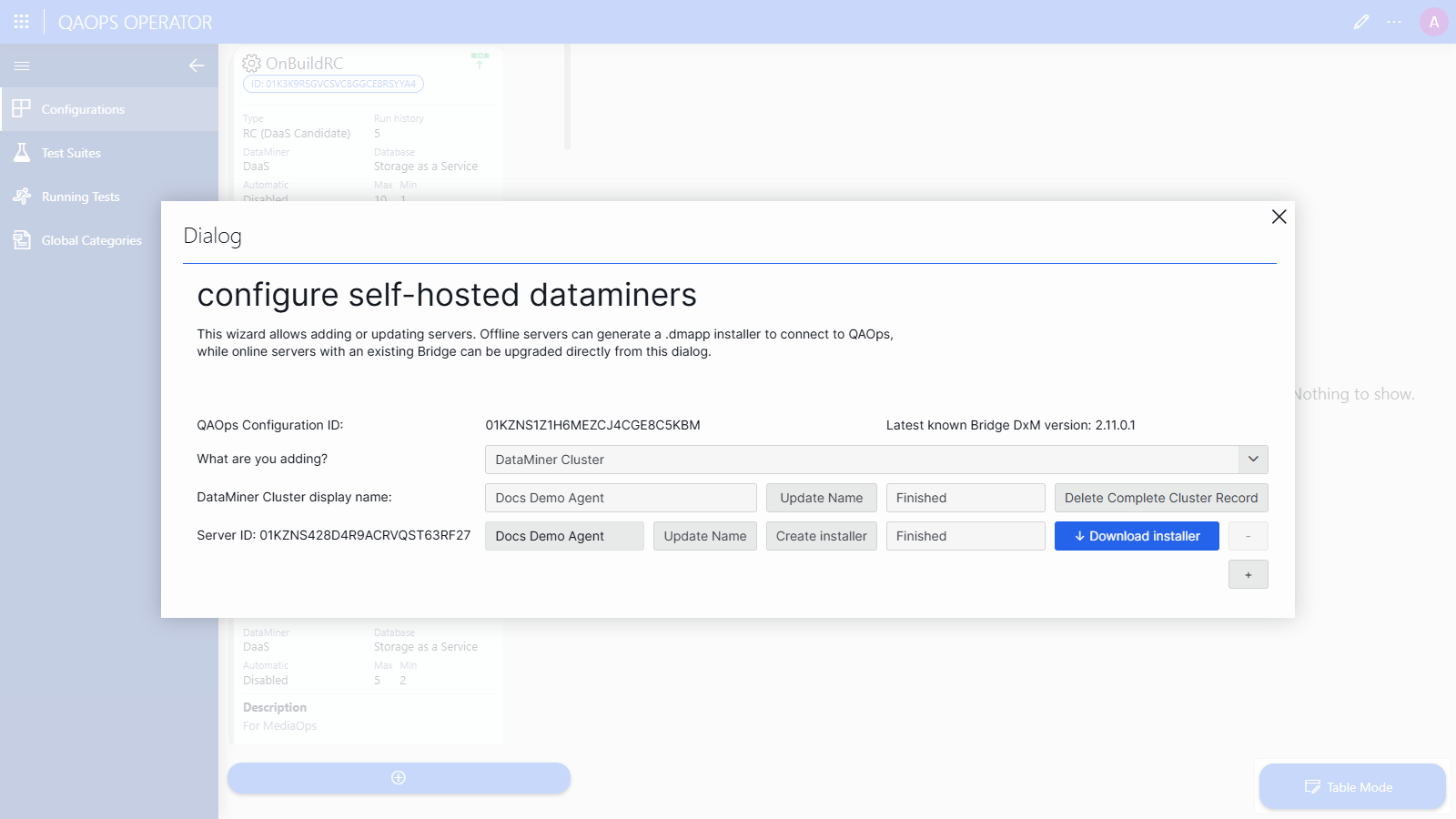
Enter a display name for the cluster, and click Update Name in the cluster row.
For each DataMiner Agent in the cluster, click the + button to add a server row.
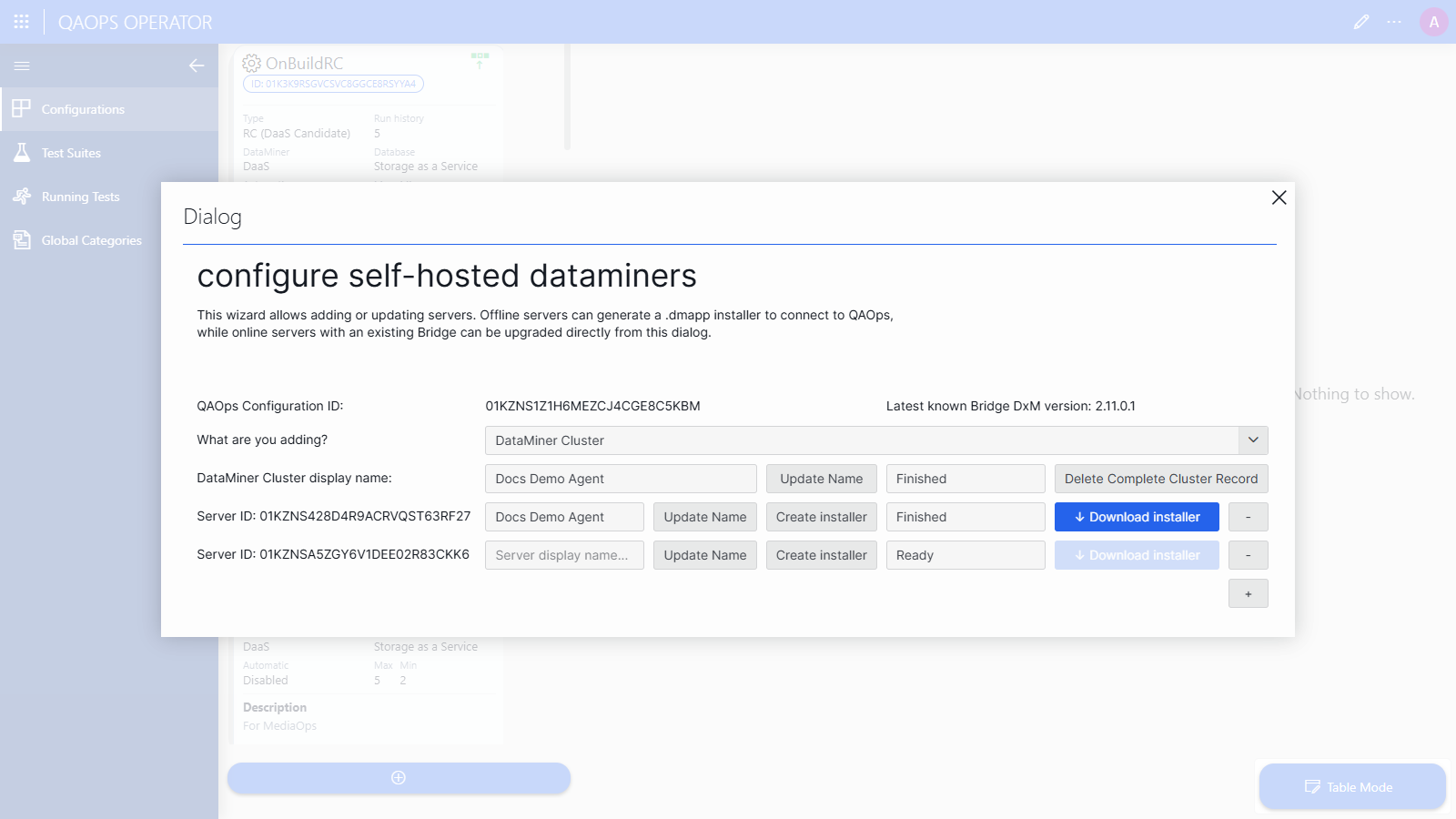
For every server row, enter a display name, click Update Name, then click Create installer, and wait for the status to show Finished.
Download the installer of each server by clicking its Download installer button.
Each installer is tied to its own Server ID, so make sure to install the right package on the right machine.
To remove a server from the cluster, click the - button in its row. To remove the entire cluster registration, click Delete Complete Cluster Record.
Step 5: Install the installer package on your server
Copy the downloaded
.dmappfile to the DataMiner server it was generated for.Install it like any other DataMiner application package (e.g., with the DataMiner Application Package installer).
The package will install the QAOps Bridge DxM preconfigured for your configuration, which connects the server to QAOps.
Back in the QAOps Operator app, select your configuration card on the Configurations page, and verify in the Servers column that the server reports its status.
Once the server is online, test runs on this configuration will execute on your self-hosted DataMiner.
Note
When a new Bridge DxM version becomes available, you can upgrade online servers directly from the wizard instead of generating a new installer.