Updating a QAOps configuration
Important
This section includes information that is only applicable to Skyline employees.
In this tutorial, you will learn the two ways to update an existing QAOps configuration in the QAOps Operator app: with the Edit Configuration dialog on a configuration card, and with Table Mode for quick inline edits across many configurations.
Expected duration: 10 minutes.
Prerequisites
Operator access to the QAOps Operator app (the blue app).
An existing configuration you are allowed to change. If you do not have one, first follow the Creating a QAOps configuration tutorial.
Overview
Step 1: Open the Edit Configuration dialog
In the QAOps Operator app, go to the Configurations page.
Locate the card of the configuration you want to change. Scroll through the card list if needed.
Click the gear icon next to the configuration name on the card.
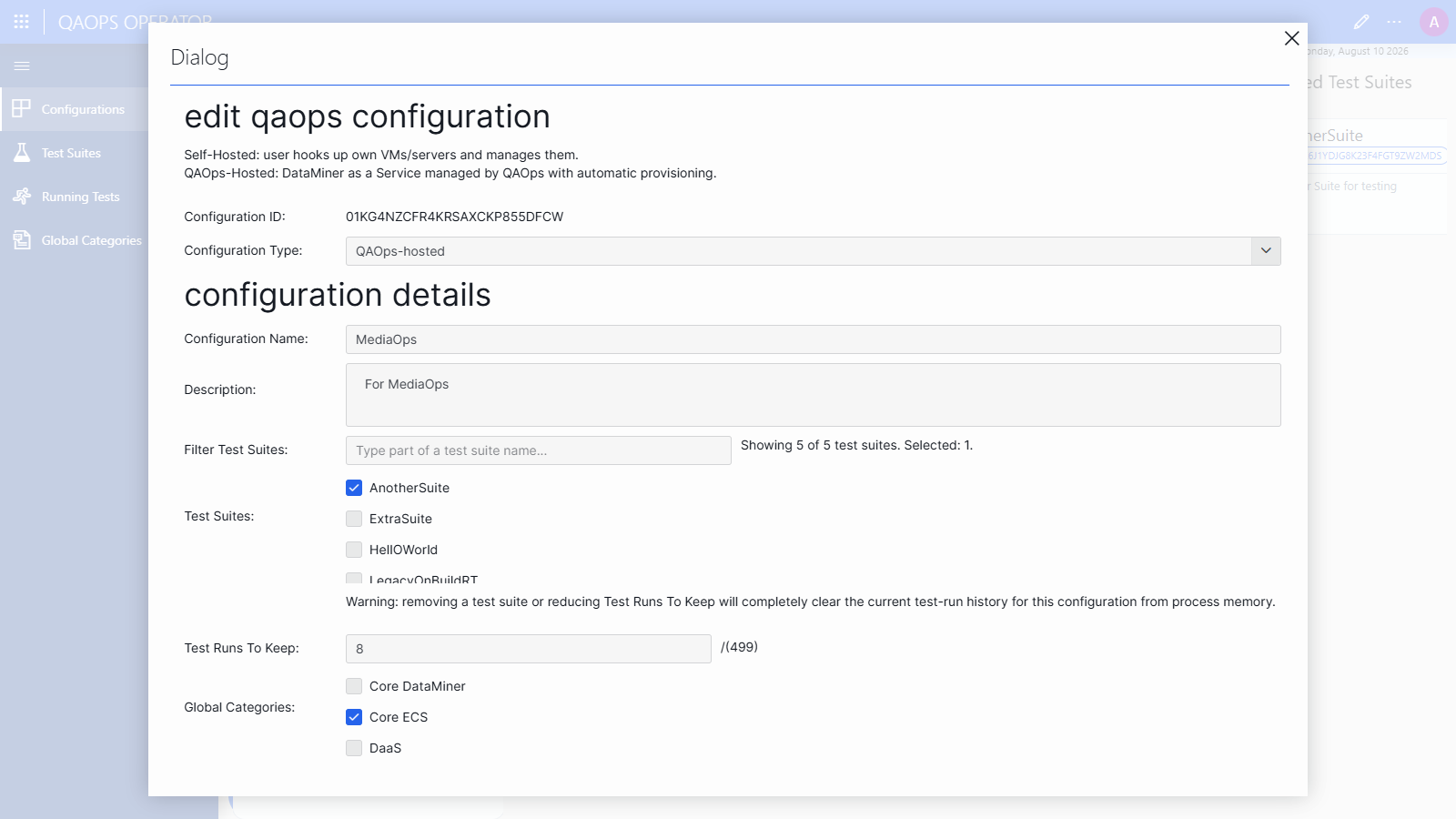
The Edit Configuration dialog will open, pre-filled with the current settings. The Status box at the bottom will show Editing existing configuration.
Step 2: Change the settings and save
Adjust the settings you need. The fields are the same as when creating a configuration; see QAOps configurations for the meaning of each setting.
Important
- Removing a test suite or reducing Test Runs To Keep will completely clear the current test run history for this configuration from process memory.
- Changing the Configuration Type is an impactful operation. Switching away from QAOps-hosted undeploys the hosted servers, and switching away from Self-hosted removes the registered self-hosted servers.
Click Save Configuration at the bottom of the dialog.
In the Status box, verify that the update was accepted.
Close the dialog by click the X in the upper-right corner.
Step 3: Update configurations in Table Mode
For quick changes to individual fields, or to edit several configurations in one place, use Table Mode:
On the Configurations page, scroll down, and click the Table Mode button in the lower-right corner.
A table view of all configurations will open, with a Servers table below it.
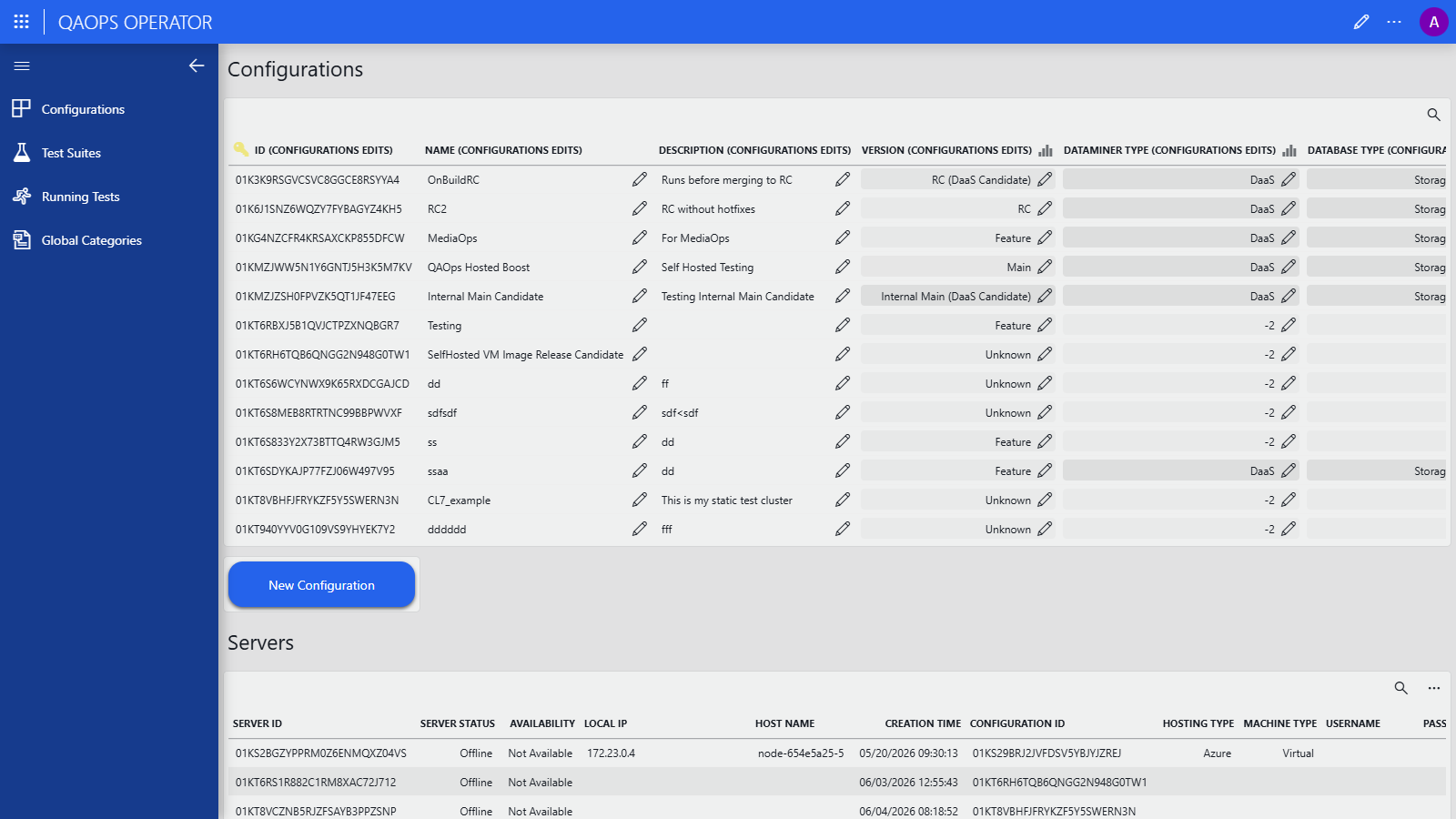
Use the magnifying glass in the upper-right corner of the table to search for your configuration by name.
Click the pencil icon next to the value you want to change (e.g., the description).
The cell will become editable, with a confirm (✓) and cancel (✗) button next to it.
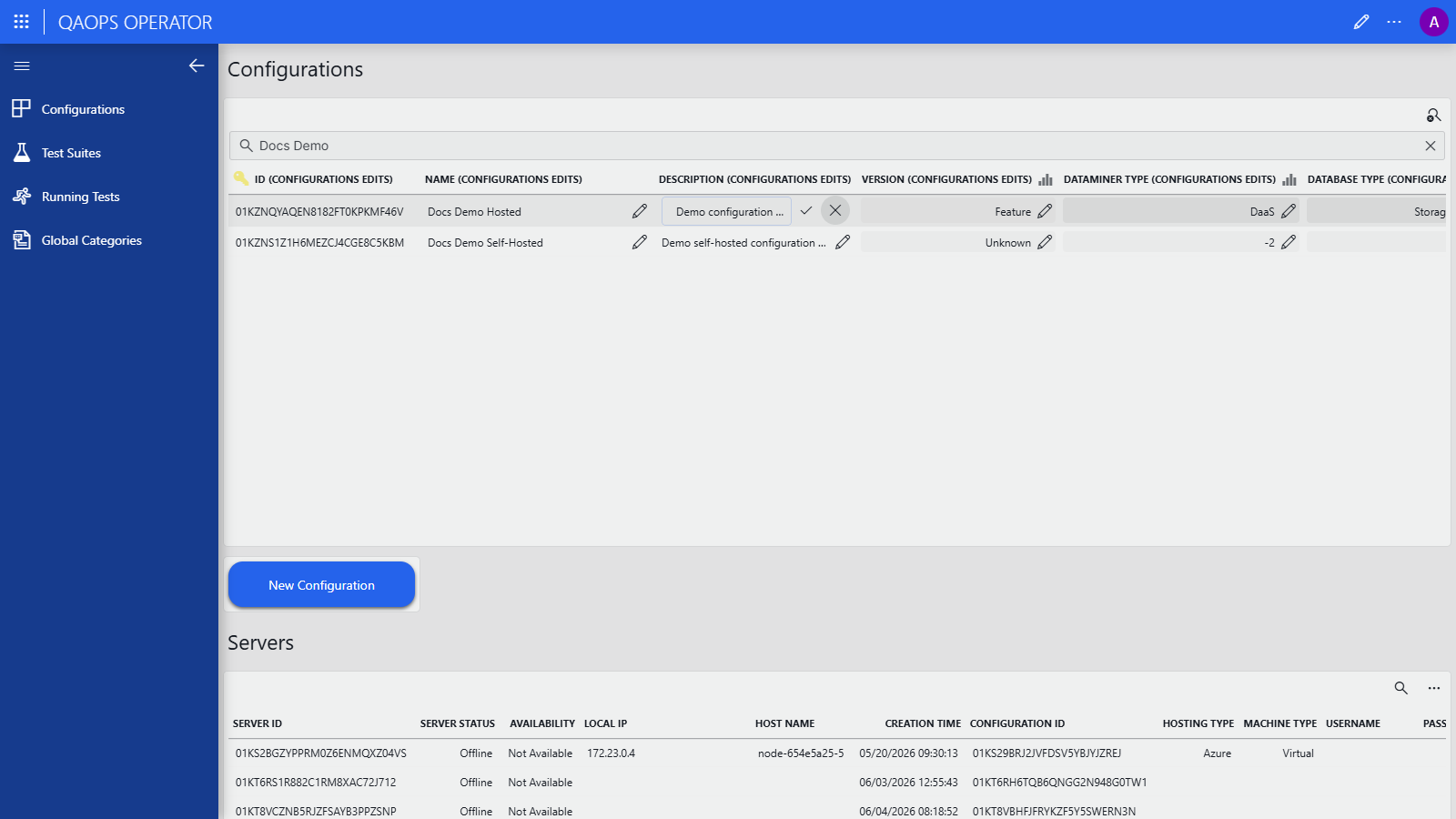
Enter the new value, and click the ✓ button to push the change through the QAOps system.
Tip
You can navigate to other pages without losing unconfirmed table changes. This is convenient when you need to look up a test suite ID or a global category and then return to finish your edit.