Creating a QAOps configuration
Important
This section includes information that is only applicable to Skyline employees.
In this tutorial, you will learn how to create a new QAOps configuration with the QAOps Operator app. You will create a QAOps-hosted configuration, where QAOps provisions DaaS servers for you. To create a configuration that uses your own servers instead, see Adding self-hosted DataMiner servers.
Expected duration: 10 minutes.
Prerequisites
Operator access to the QAOps Operator app (the blue app).
At least one existing test suite. If you do not have one yet, first follow the Creating and managing test suites tutorial.
Overview
Step 1: Open the Create Configuration dialog
In the QAOps Operator app, go to the Configurations page using the navigation pane on the left.
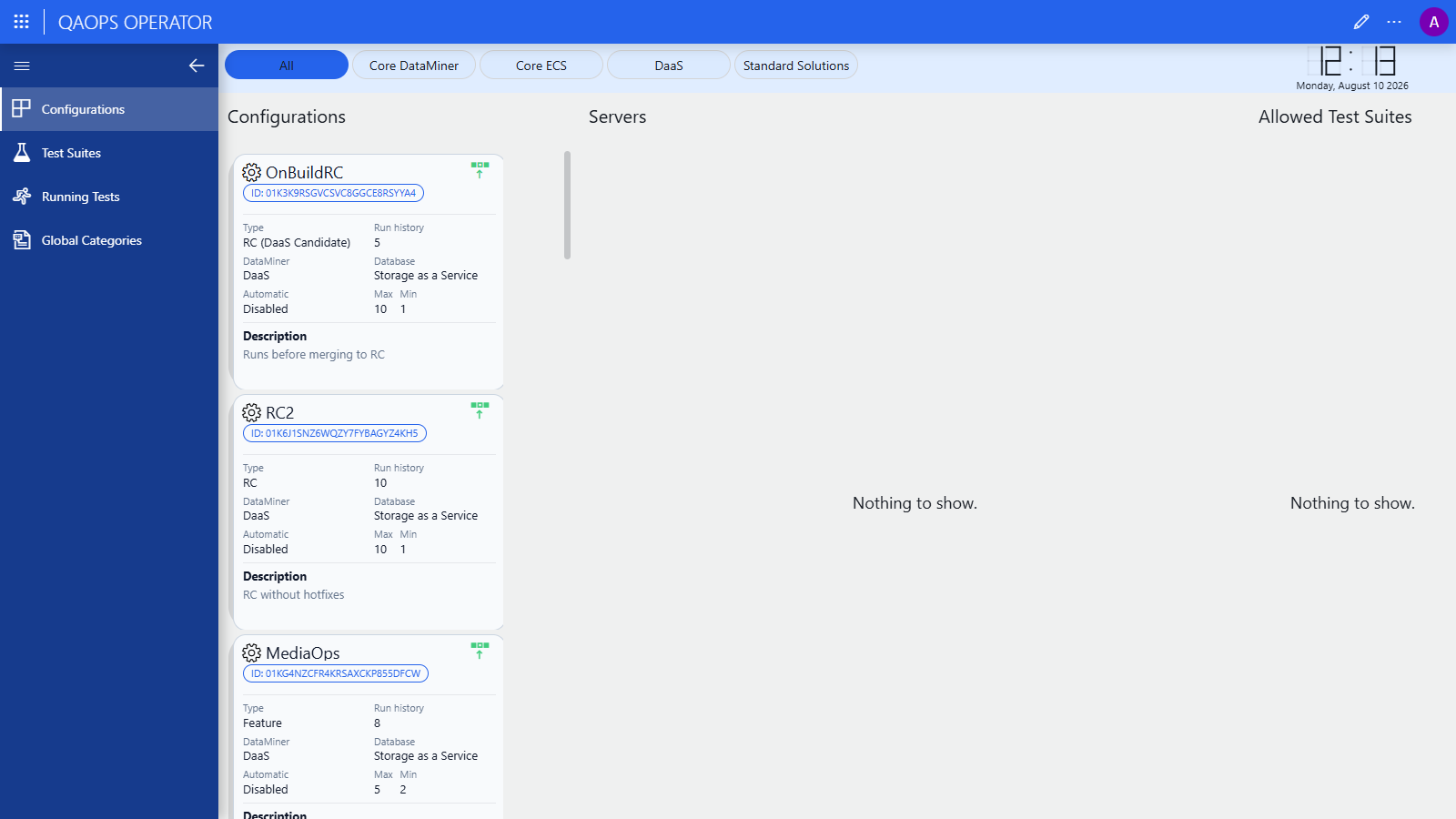
Scroll to the bottom of the list of configuration cards.
Click the wide blue button with the ⊕ icon below the last card.
The Create Configuration dialog will open, and a unique configuration ID (ULID) will be generated automatically.
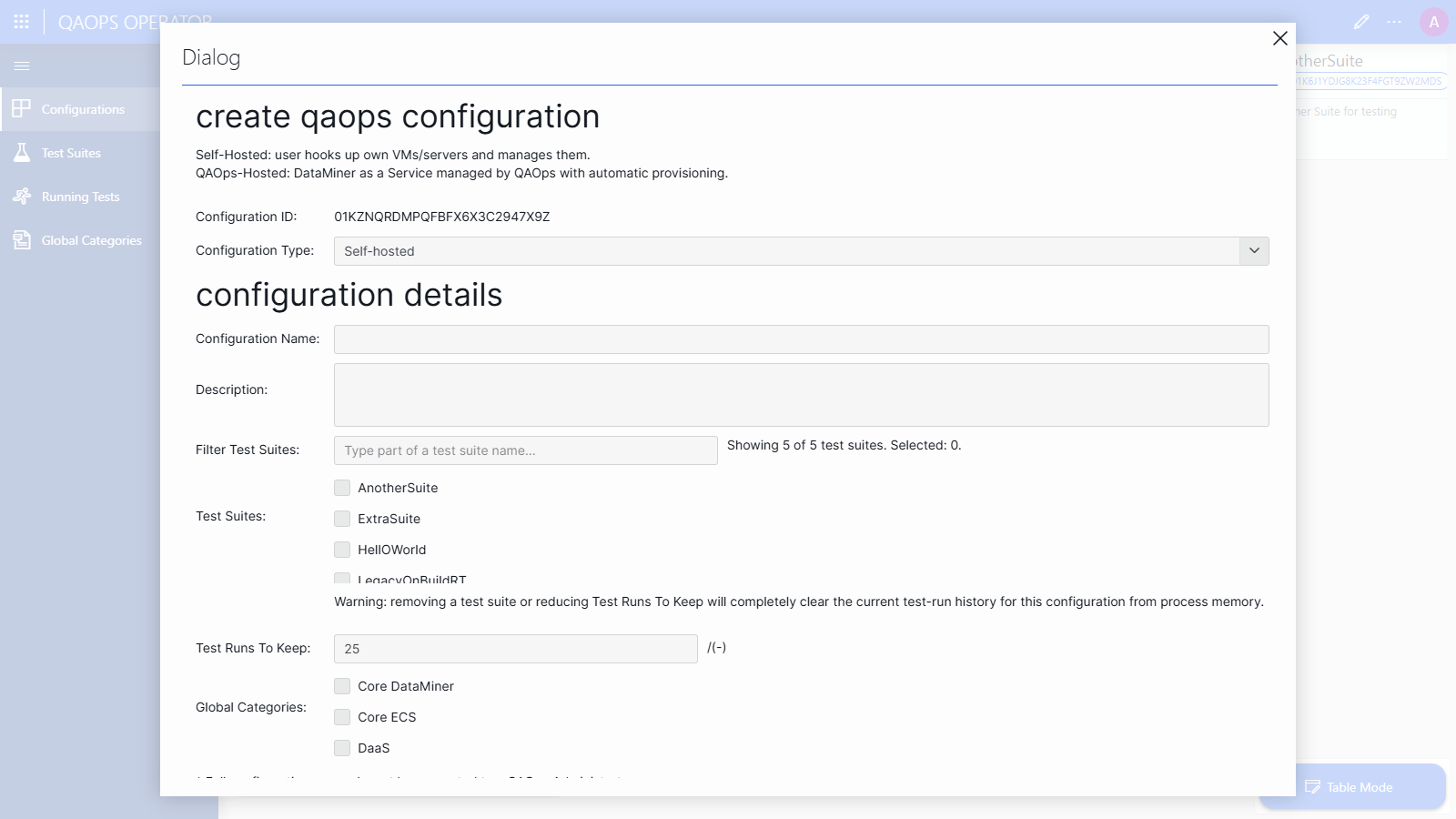
Step 2: Choose the configuration type and enter the basics
Open the Configuration Type dropdown box, and select QAOps-hosted.
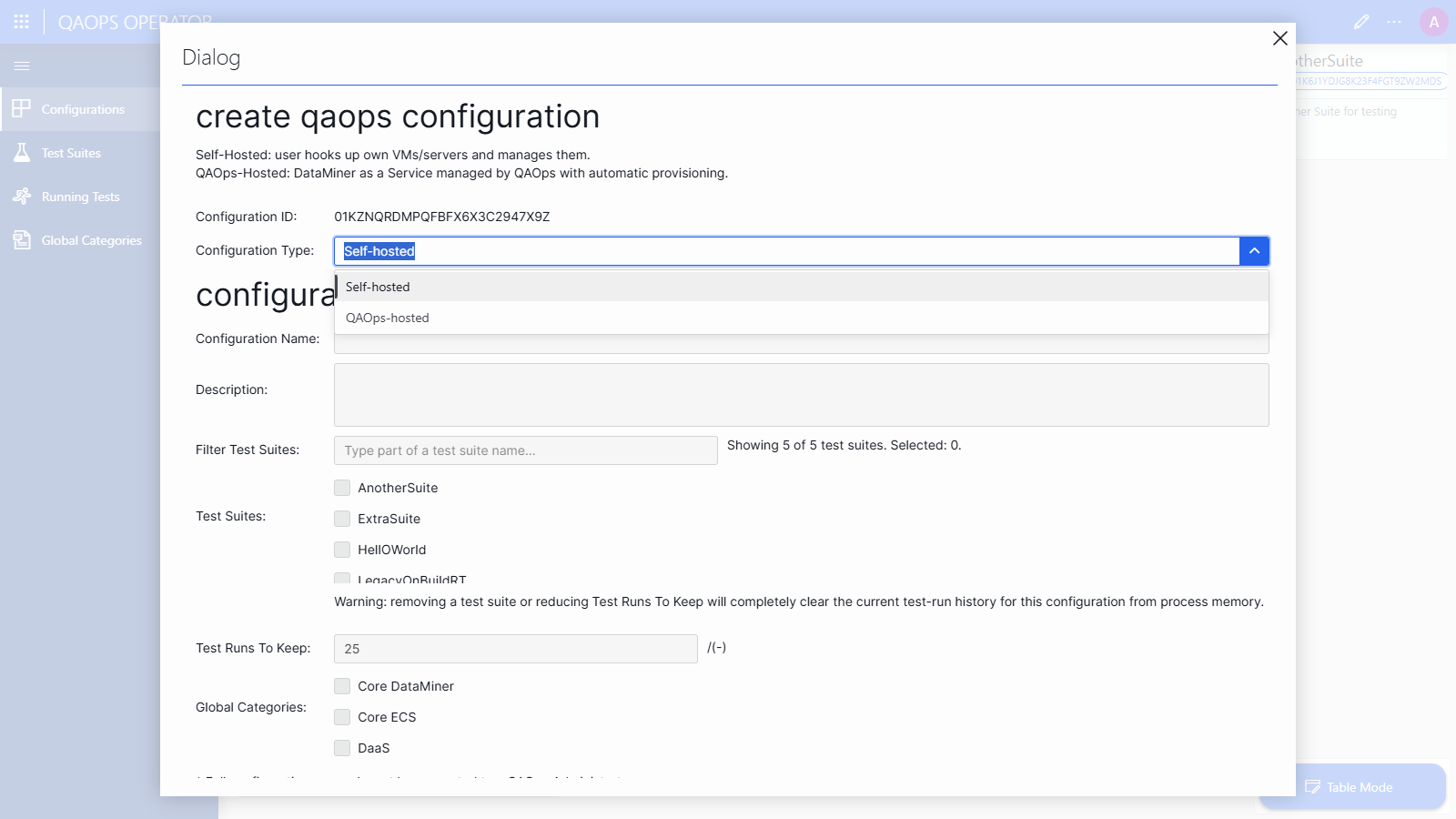
QAOps-hosted: QAOps deploys and manages DaaS servers to run your tests. This is the most common choice.
Self-hosted: You connect your own DataMiner servers to QAOps. See Adding self-hosted DataMiner servers.
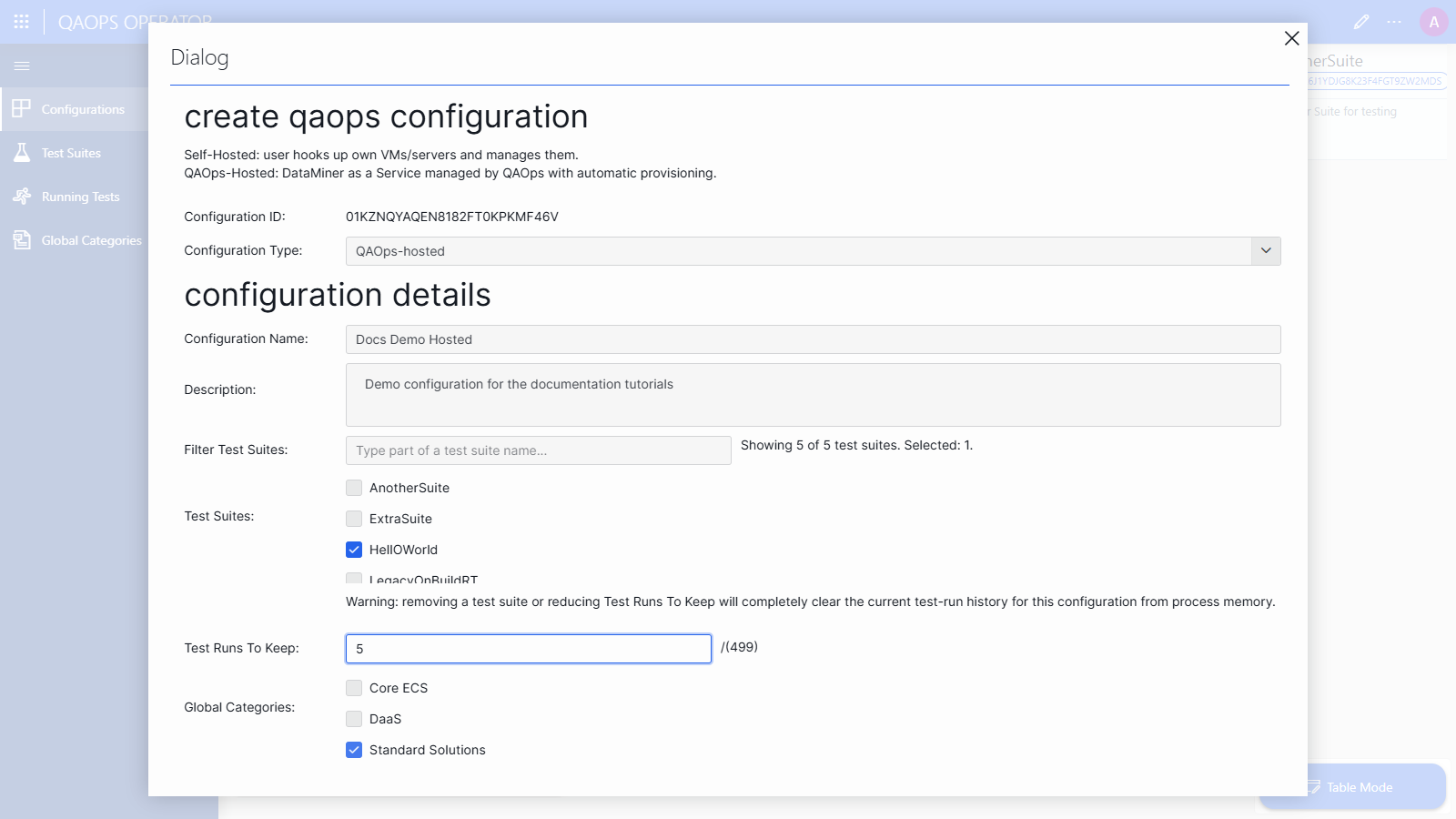
Enter a Name for the configuration. For example, the name of your project or solution.
Enter a Description that tells other operators what this configuration is used for.
Step 3: Select the allowed test suites and run retention
Under Test Suites, select the checkbox of every test suite that is allowed to run on this configuration.
You can use the Filter Test Suites box to quickly find a test suite by name.
Important
Removing a test suite later will completely clear the current test run history for this configuration from process memory. Only select the test suites you need.
In the Test Runs To Keep box, enter how many test runs (and their results) QAOps should keep in memory for this configuration.
Set this to the lowest number you need to validate your quality gates and debug issues. Keep the product of the number of test suites and the number of test runs to keep well below 500. The maximum is 499.
Under Global Categories, optionally select one or more categories (e.g., Standard Solutions).
These categories power the filter buttons in the header bar of the QAOps apps, making your configuration easier to find.
Step 4: Configure QAOps-hosted provisioning
Because you selected QAOps-hosted, the dialog will show a QAOps-Hosted Provisioning section.
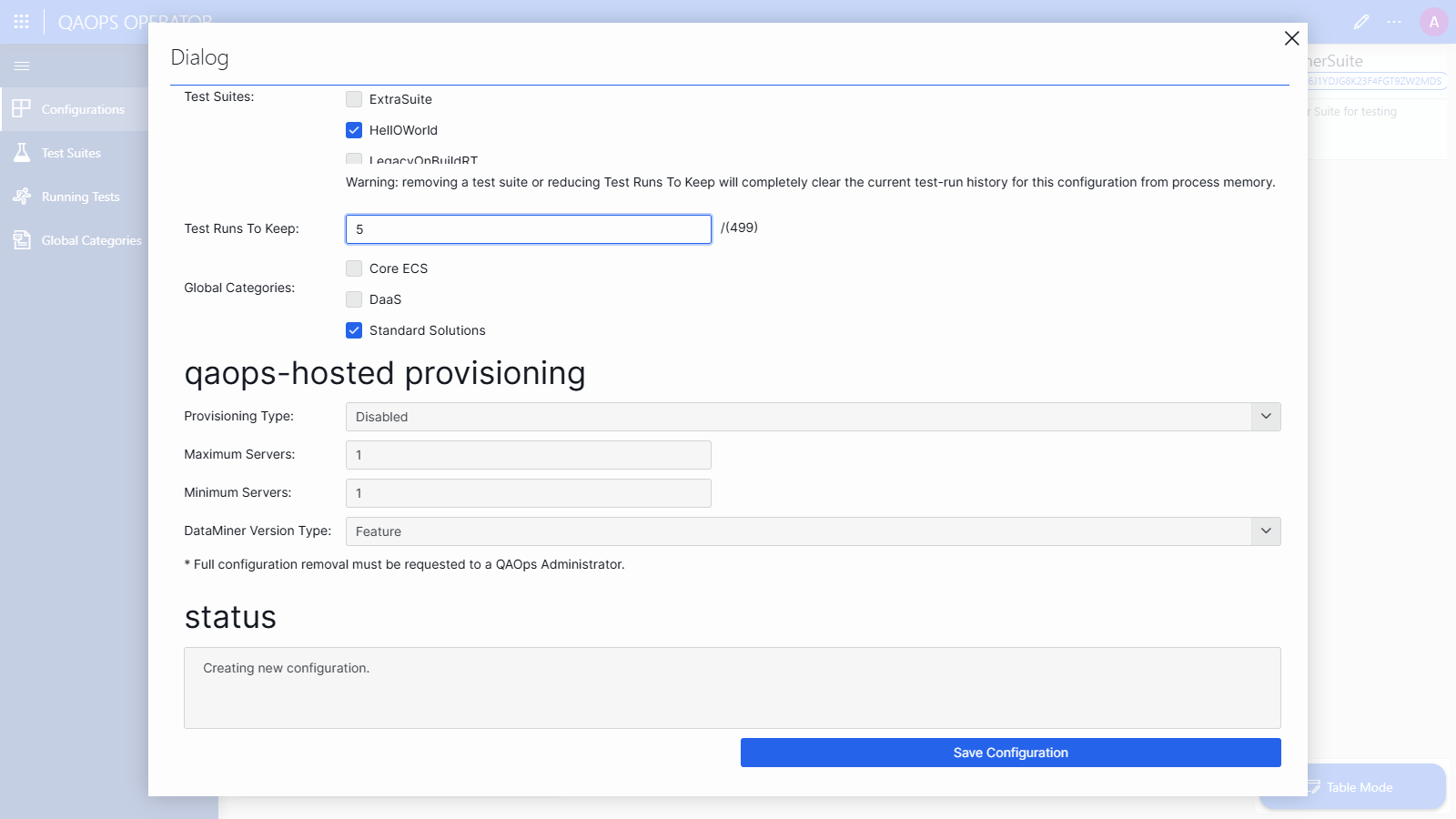
Open the Provisioning Type dropdown box, and select how servers should be deployed:
Disabled: No servers are deployed automatically. You can still deploy servers manually with the deploy button on the configuration card.
Pre-Deployed Pool: QAOps always tries to keep a minimum number of servers available. As soon as one is used, a new one is deployed in the background. Use this for setups that need fast feedback throughout the day.
On Test Deployment: A server is deployed when a test run request comes in. This is a good fit for daily CI/CD pipelines.
Set Maximum Servers (the number of running servers will never exceed this) and Minimum Servers (the pool size that Pre-Deployed Pool provisioning tries to maintain).
Open the DataMiner Version Type dropdown box, and select which DataMiner version the deployed servers should run.
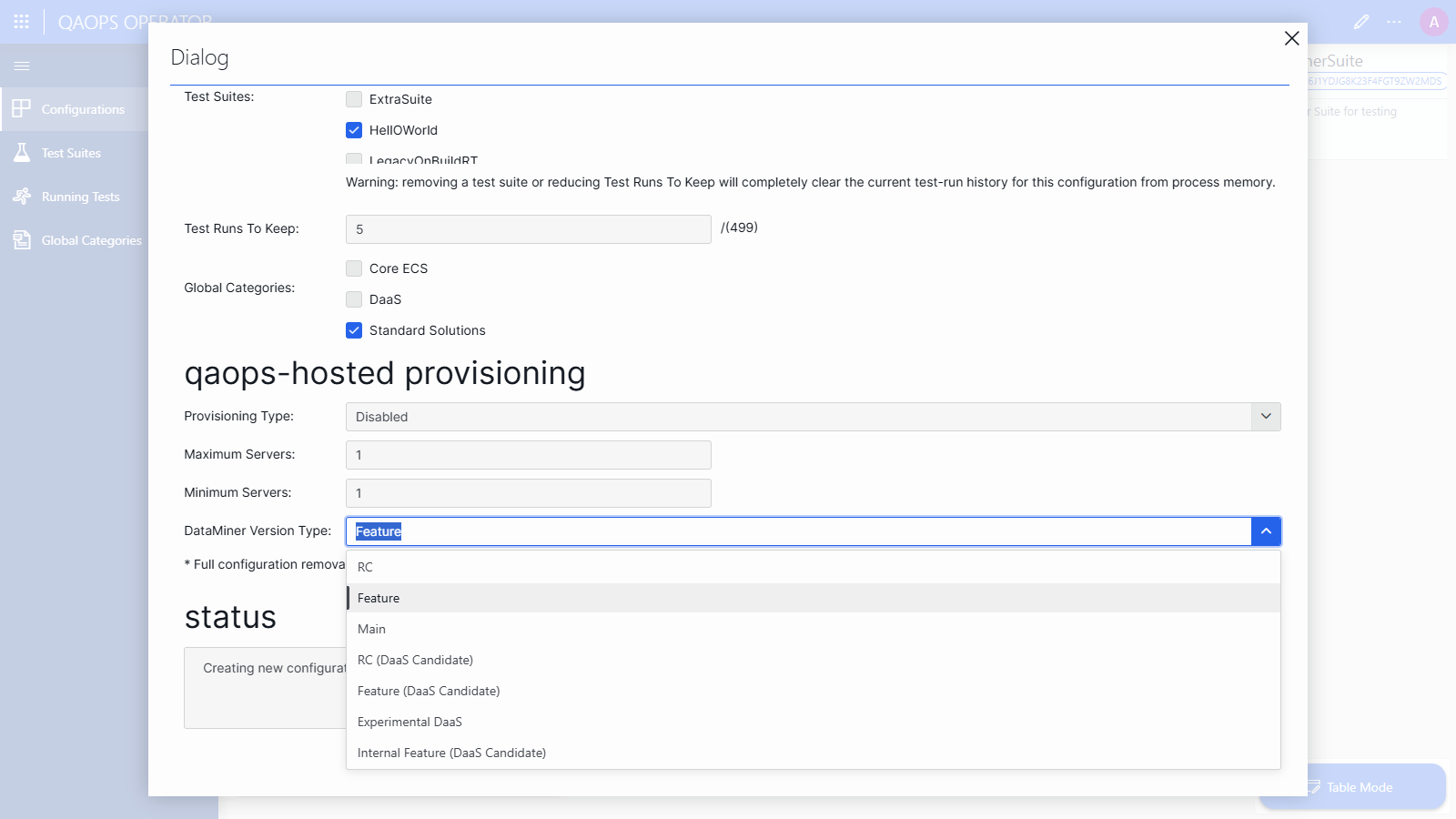
For most projects, choose Feature (latest feature release, recommended for stable testing), RC (upcoming release candidate, for early compatibility checks), or Main (latest released version). The (DaaS Candidate), Experimental DaaS, and Internal Feature options are intended for the DaaS team. See QAOps configurations for details on each option.
Step 5: Save the configuration
At the bottom of the dialog, click Save Configuration.
Watch the Status box below the button. It will indicate whether the configuration was created successfully.
Close the dialog by clicking the X in the upper-right corner.
Your new configuration will appear as a card on the Configurations page.
Note
If you want to fully remove a configuration, contact a QAOps Administrator. The QAOps Operator app does not allow you to do this.