Asset Manager
The Asset Manager app allows you to add your assets to the system, including network, location, lifecycle, custody, and ownership details, and generic information such as serial number and firmware. Asset classes are defined that will act as templates for your managed assets, facilitating their creation and minimizing errors. Connections between assets can be defined, along with accurate positioning of assets on racks. A full hierarchical structure within a chassis (cards, subcards, modules, power supplies, and fans) can be defined and visualized in a node-edge graph.
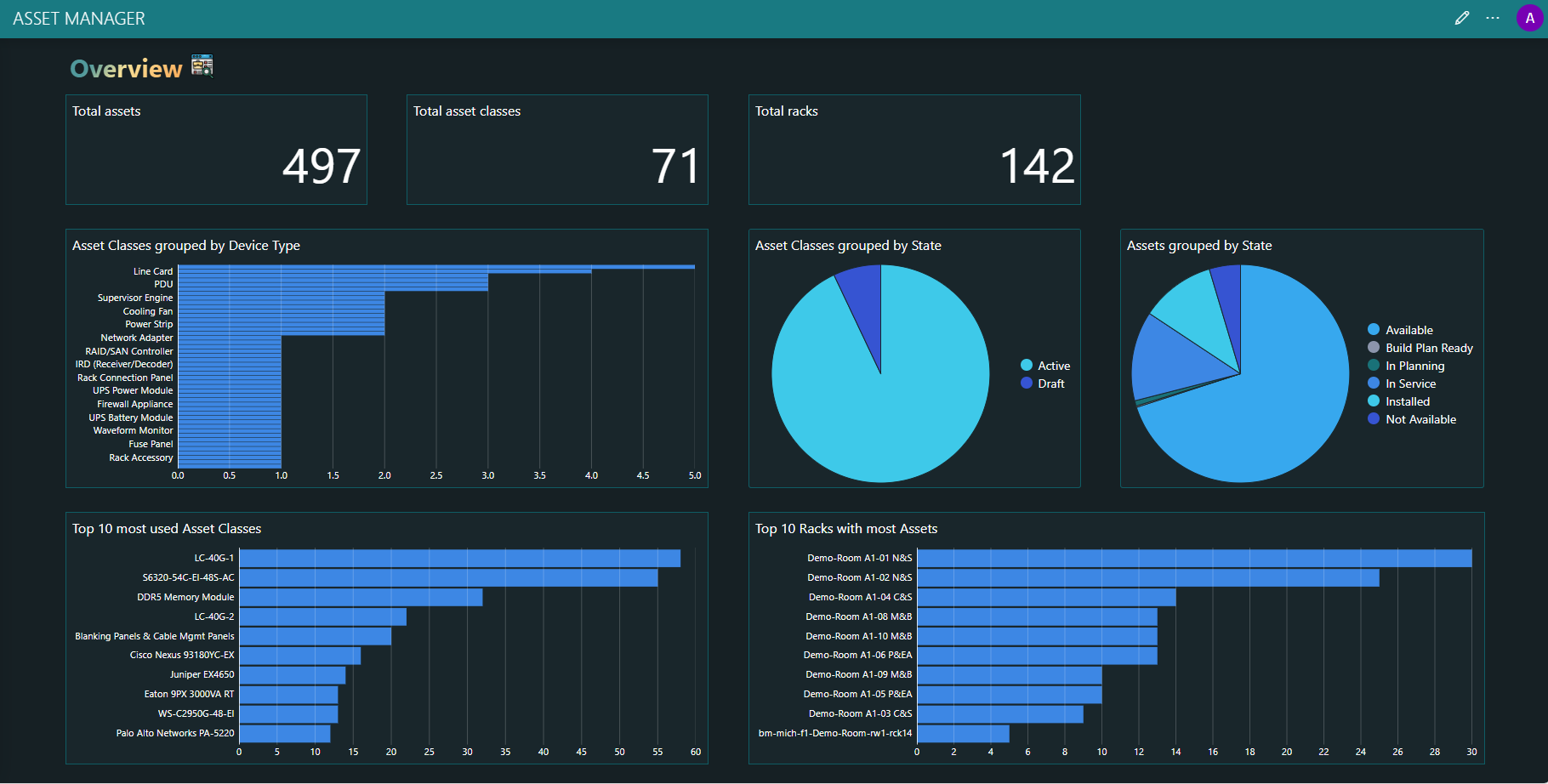
App Overview
 Overview: Provides an overview of statistics related to your assets and racks.
 Managed Assets: Allows you to add and configure assets.
 Asset Designer: Allows you to configure asset classes for your assets, as well as device types, cable types, and port types. Once the asset classes are configured, you can start adding assets on the Managed Assets page.
 Connections: Provides an overview of all connections and allows you to create power and data connections.
 Managed Racks: Provides an overview of your racks and allows you to view rack details in a pane similar to the Rack View page.
 Rack View: Visualizes a rack and allows you to assign assets and reserve slots.
 Row Viewer: Visualizes the racks in a specific row.
 Rack Comparer: Allows you to compare two racks side by side.
 Room Viewer: Shows the room as configured in the Room Designer.
 Management Applications: Provides links to the other InfraOps apps.
 History: Displays the history for assets and/or connections, if history tracking is enabled for these in the app settings.
 About: Contains version information for the app, as well as the app settings.